
- Messages
- 2
- Country

Hello all! I've reached a frustrating impass with a model I am trying to add to my Ohio University Airport scenery add-on. I am successfully using albedo/comp/normal textures in other models on the airfield (Nice reflections where needed, nice brick textures, etc.) , but it seems this one just always shows up in MSFS as matte, while it looks really nice in blender:
Blender:
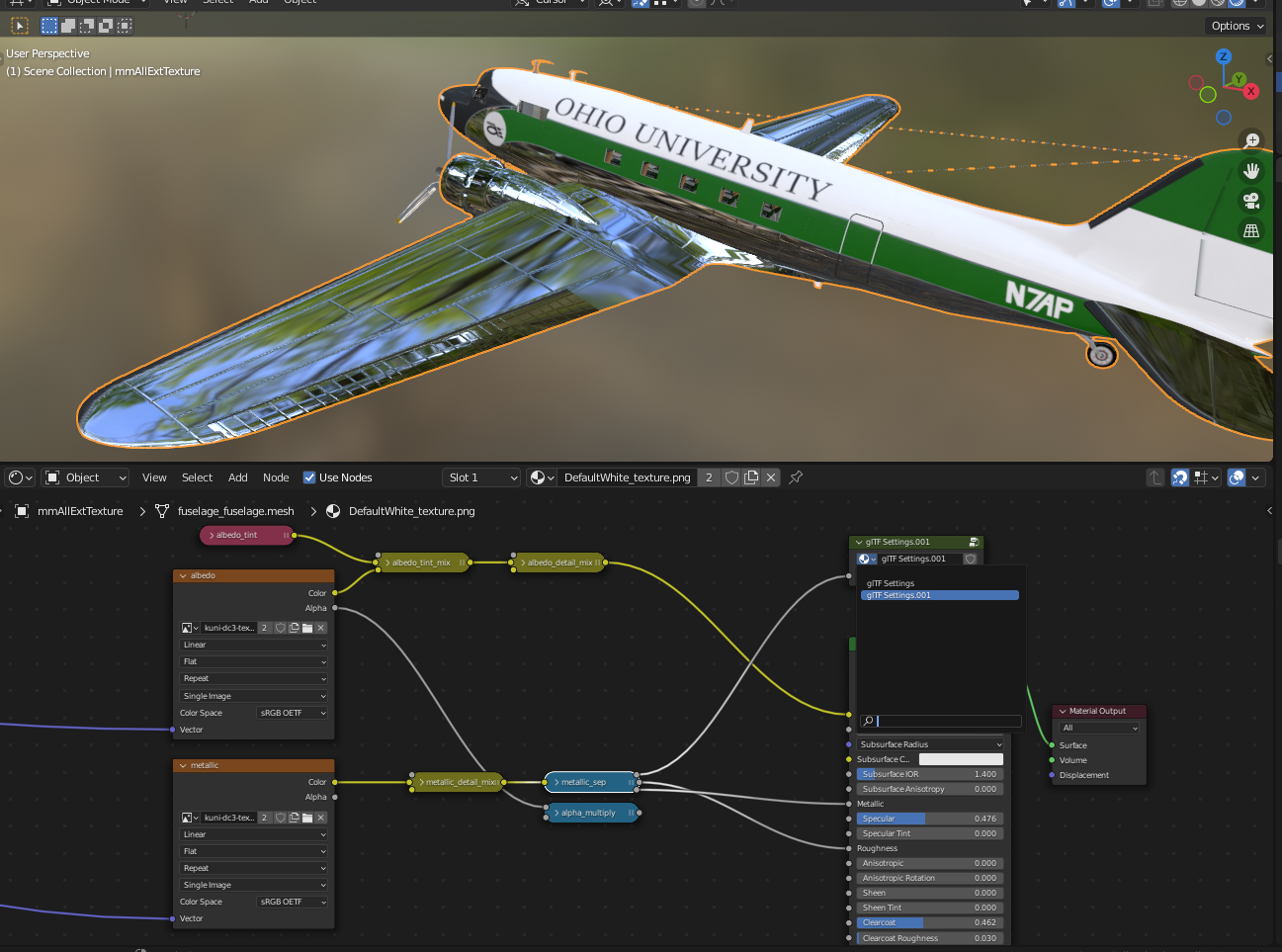
vs MSFS:

I cranked up the shininess in the comp file purposely to try to affect it, so the aircraft skin is a little TOO shiny now. In the blender image, you can see the important parts of my shader including the gltf settings which I made sure were the right ones (The wrong ones produce a pink texture in MSFS)
Things I've tried:
1) Made sure all face normals in blender are facing out
2) Inverted the Y on the normals texture
3) Inverted the colors in the Red channel of the comp texture in case I was using the wrong logic (White = light hits it, Black = shadowed)
4) Inverted both the Roughness and Metallic (G and B) channels in the comp texture, though I understand their logic
5) Cranked up the normal multiplier in the MSFS portion of the blender material but this makes it look horrible, obviously
Here is an example of the Albedo/normals/R (ao)/G (Roughness)/B (Metallic) from my texture files:
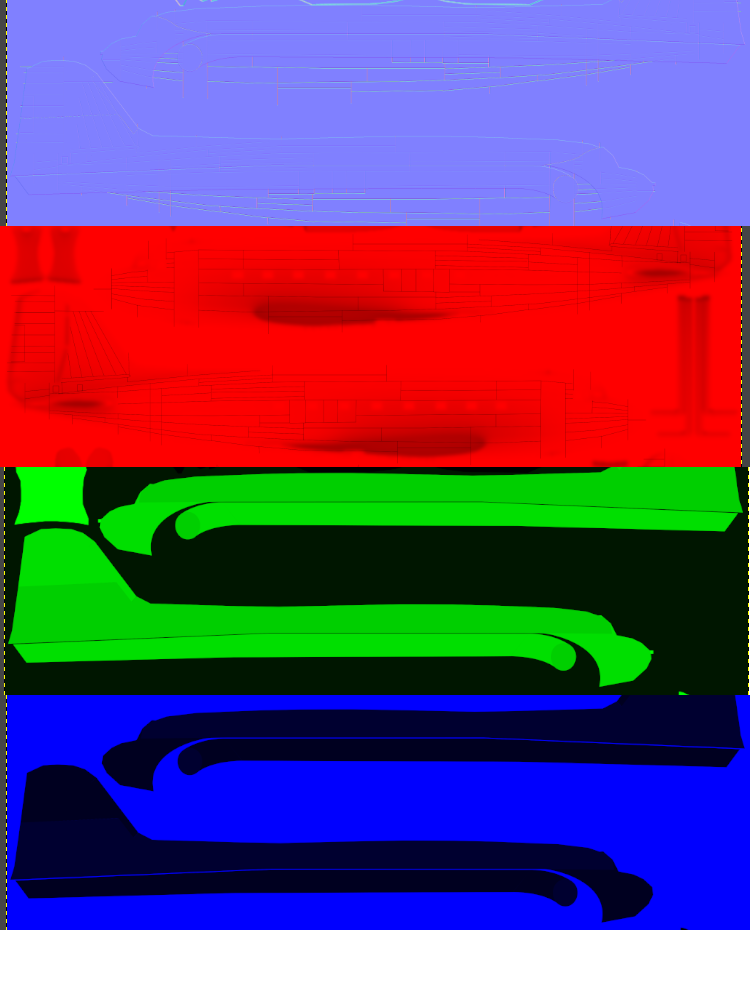
And here are my Material setting for MSFS:


Does anyone see anything glaringly wrong here, or have any idea what could be causing this?
Thanks!
Mike
Blender:
vs MSFS:
I cranked up the shininess in the comp file purposely to try to affect it, so the aircraft skin is a little TOO shiny now. In the blender image, you can see the important parts of my shader including the gltf settings which I made sure were the right ones (The wrong ones produce a pink texture in MSFS)
Things I've tried:
1) Made sure all face normals in blender are facing out
2) Inverted the Y on the normals texture
3) Inverted the colors in the Red channel of the comp texture in case I was using the wrong logic (White = light hits it, Black = shadowed)
4) Inverted both the Roughness and Metallic (G and B) channels in the comp texture, though I understand their logic
5) Cranked up the normal multiplier in the MSFS portion of the blender material but this makes it look horrible, obviously
Here is an example of the Albedo/normals/R (ao)/G (Roughness)/B (Metallic) from my texture files:
And here are my Material setting for MSFS:
Does anyone see anything glaringly wrong here, or have any idea what could be causing this?
Thanks!
Mike

