
• Which the release of FS2020 we see an explosition of activity on the forun and of course we are very happy to see this. But having all questions about FS2020 in one forum becomes a bit messy. So therefore we would like to ask you all to use the following guidelines when posting your questions:

    • Tag FS2020 specific questions with the MSFS2020 tag.
    • Questions about making 3D assets can be posted in the 3D asset design forum. Either post them in the subforum of the modelling tool you use or in the general forum if they are general.
    • Questions about aircraft design can be posted in the Aircraft design forum
    • Questions about airport design can be posted in the FS2020 airport design forum. Once airport development tools have been updated for FS2020 you can post tool speciifc questions in the subforums of those tools as well of course.
    • Questions about terrain design can be posted in the FS2020 terrain design forum.
    • Questions about SimConnect can be posted in the SimConnect forum.

    Any other question that is not specific to an aspect of development or tool can be posted in the General chat forum.

    By following these guidelines we make sure that the forums remain easy to read for everybody and also that the right people can find your post to answer it.

FSX Gmax help please

Messages
1,068
Country
us-northcarolina
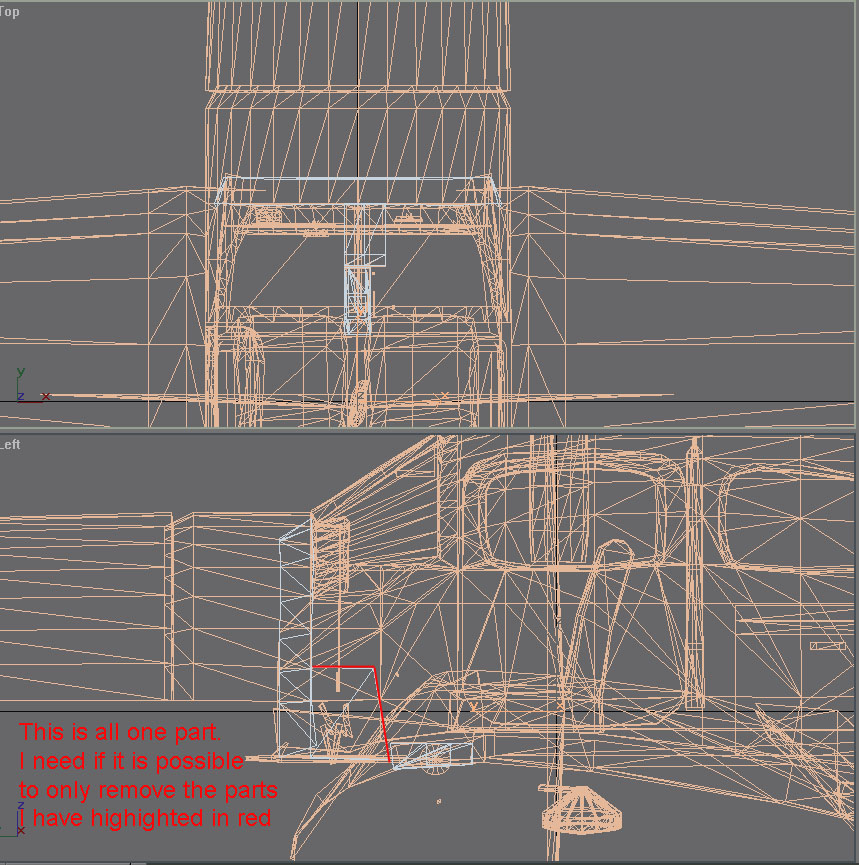
Seems that I know JUST enough to get in trouble with Gmax. After two days and reinstalling the SDK from FSX Disk 1 through the Service Packs so that I got the FSTools, I am able to use Gmax but don't know HOW to use Gmax. Here is my dilemma. First, when I exported the MDL all the windows were black and the panel disappeared after i tried to get rid of the parts I have highighted in red. I am hoping that someone can either in Gmax if you still use it OR in Blender that I don't have a clue how to use after trying and having less hair than when I started, I can provide you a 3ds of the model which I have Milton Shupe's permission to modify and have had his permission since 2023 when I began the Spartan Executive project. I hope that a savvy developer here can remove the two "red" parts and leave me the panel which my vc already created will attach to. Here is the screenshot in Gmax:
spartan.jpg
 
May be I'm miss reading but if just want to remove the red polygons.

Just select the polygon and press delete key or right click and select from the menu.

If want to split , select and right click and do from that menu.
 
1. Select part (already done in your image)
Press h
Select from list

2. Hide all but selected part
Right click in the window
Choose Hide Unselected

3. Click Modify tab from the top of the Modifier List
(Blue curved pipe at top right of screen)

4. Add Edit Mesh modifier to list (do this even if there is one there already, unless you already added one)
Click black down arrow in the white square to the right of the Modifier List box
Choose Edit Mesh from the list

5. Choose Polygon Mode
Click the black plus to the left of Edit Mesh
Choose Polygon from the list

6. If the polygons will be visible (I.e. they are not interior in this part), go to Smooth + Highlights view
Right click the view direction word at the top left of the window
Choose Smooth + Highlights

7. Highlight selected polygons (turns selected polygons solid red)
Press F2.
This is a toggle

8. Click on a polygon to select it.
It should turn solid red. If not, press F2

9. Delete the polygon
Press delete key
If it asks if you want to delete Isolated Vertices, click Yes

10. Repeat 8 and 9 until all polygons are deleted.

11. When finished
Click Edit Mesh in the Modifier List to get out of Polygon Mode
Right click in view window and choose Unhide All
Save the file with a new name to avoid overwriting the original file

Hope this helps,
 
Last edited:
1. Select part (already done in your image)
Press h
Select from list

2. Hide all but selected part
Right click in the window
Choose Hide Unselected

3. Click Modify tab from the top of the Modifier List
(Blue curved pipe at top right of screen)

4. Add Edit Mesh modifier to list (do this even if there is one there already, unless you already added one)
Click black down arrow in the white square to the right of the Modifier List box
Choose Edit Mesh from the list

5. Choose Polygon Mode
Click the black plus to the left of Edit Mesh
Choose Polygon from the list

6. If the polygons will be visible (I.e. they are not interior in this part), go to Smooth + Highlights view
Right click the view direction word at the top left of the window
Choose Smooth + Highlights

7. Highlight selected polygons (turns selected polygons solid red)
Press F2.
This is a toggle

8. Click on a polygon to select it.
It should turn solid red. If not, press F2

9. Delete the polygon
Press delete key
If it asks if you want to delete Isolated Vertices, click Yes

10. Repeat 8 and 9 until all polygons are deleted.

11. When finished
Click Edit Mesh in the Modifier List to get out of Polygon Mode
Right click in view window and choose Unhide All
Save the file with a new name to avoid overwriting the original file

Hope this helps,
Thank you for the detailed explanation. I just printed it out so that I can follow it while I am in gmax and praying that it works for what I want it to do. You have always been a good help to me, thanks.
 
1. Select part (already done in your image)
Press h
Select from list

2. Hide all but selected part
Right click in the window
Choose Hide Unselected

3. Click Modify tab from the top of the Modifier List
(Blue curved pipe at top right of screen)

4. Add Edit Mesh modifier to list (do this even if there is one there already, unless you already added one)
Click black down arrow in the white square to the right of the Modifier List box
Choose Edit Mesh from the list

5. Choose Polygon Mode
Click the black plus to the left of Edit Mesh
Choose Polygon from the list

6. If the polygons will be visible (I.e. they are not interior in this part), go to Smooth + Highlights view
Right click the view direction word at the top left of the window
Choose Smooth + Highlights

7. Highlight selected polygons (turns selected polygons solid red)
Press F2.
This is a toggle

8. Click on a polygon to select it.
It should turn solid red. If not, press F2

9. Delete the polygon
Press delete key
If it asks if you want to delete Isolated Vertices, click Yes

10. Repeat 8 and 9 until all polygons are deleted.

11. When finished
Click Edit Mesh in the Modifier List to get out of Polygon Mode
Right click in view window and choose Unhide All
Save the file with a new name to avoid overwriting the original file

Hope this helps,
I tried but just can't it to do what you say its supposed to do. Do you still have Gmax with FSTools? I again have Milton Shupe's permission to modify this however I want to work in the vc. I have his original gmax files he just sent to me because he is no longer able to do any gmax design. If you are willing (and still able), can I send you those. You know already from this post what I am trying to do. Those two lines I highlighted in red, mess up the vc. This is an add to my reply...I tried and thought that I ACTUALLY had accomplished it but NO I just got garbage in the FSX sim. I'll wait for you to reply with either you can or cannot help because I can't. Milton's gmax isn't any use, it's the whole model. I've got that already I can open in MDCx. I can send you my 3ds with all the parts gone I don't need/want so you can see if you can remove those two polygons and an FSX mdl exported.
 
Last edited:
If those polygons are part of the vc gauge display system, then deleting them will adversely affect that gauge mapping. And any texturing at all will probably end up distorted.
 
I don't believe they are. I am just trying to remove the horizontal rectangle that is distorting MY vc . I was able to drop all of the model vc parts in Model Converter X with the object heirarchy but the panel and that horizontal plate are one part in the object heirarchy. I was able to remove them with the vector in gmax but I don't think that I exported it correctly and ended up with a bad mdl in FSX. If you can remove those two red parts and correctly export the mdl for FSX I think it will be good and usable.
Screenshot (153).jpg
 
From what I see is you said want to remove the RED
And you did was delete polygon .
It is just deleting the surface.
Can see some cut line is up and some are down.

I think what you had to do is slice and then delelte.
 
What polygons in the image above are you trying to remove? Are they completely defined polygons? I.e. are there lines around all sides in wireframe mode?

I don’t do GMAX work anymore.
 
I don't know enough about this to answer the question. I was hoping that you did but it seems that I can't find anyone who does gmax work any more so I am sadly disappointed but maybe somebody else will pop in who still does gmax. No Milt, No Tom, I hope there is still someone out there who does even if it's not actively designing in it can still help me out. Thank you for all your input. I may continue to try and fix it but not tonight or tomorrow. Have a good rest of the weekend.

Richard
 
Why you are asking who is using GMAX ?
The answer is already writen above.
Because I would like to have someone who has had experience that I haven't had though I am trying to do it myself.
Spartan Exterior Export.jpg
Here is why! This is what I got exported from gmax. What am I doing wrong? I got rid of the part I didn't want using Tom's directions. So why isn't it correctly exported. I followed an FSDevelopers thread of How to Prepare YourGMAX model for exporting. Do you still use gmax Hiroshi-san?
 
I use GMax but FSX SDK has been broken by Windows 11 update after 24H2
So when working on that , have to pull out the old Windows 10 PC .
Anyway my main is FS2004 since there is no problem with FS2004SDK + Windows 11.
Now working on A320Neo.

On FSX usally black means can't identify the texture or data to be displayed .
I think you are using the same panel.cfg as original.
And just swapped the model for a check.
If so , indeed MDL seems to be wrong.

Basic knowledge
VC's guage shown are treated as just a texture.Just the material difference.
Texture used to show guage starts from $ which is same as the one in panel.cfgs vcockpit section.
I think you better check the materials used on the guage.

Have you got the original source from the author ?
If so should be written there and can export with no problems.
 
Last edited:
Can you successfully compile the unchanged GMAX file Milton sent you?
 
I'm thinking he doesn't have the original GMax file
Just editing from the 3DS exported from Model ConverterX
So it won't be just a slice and edit.
Thats why wrote have a original source or not.
 
Last edited:
Back
Top