
• Which the release of FS2020 we see an explosition of activity on the forun and of course we are very happy to see this. But having all questions about FS2020 in one forum becomes a bit messy. So therefore we would like to ask you all to use the following guidelines when posting your questions:

    • Tag FS2020 specific questions with the MSFS2020 tag.
    • Questions about making 3D assets can be posted in the 3D asset design forum. Either post them in the subforum of the modelling tool you use or in the general forum if they are general.
    • Questions about aircraft design can be posted in the Aircraft design forum
    • Questions about airport design can be posted in the FS2020 airport design forum. Once airport development tools have been updated for FS2020 you can post tool speciifc questions in the subforums of those tools as well of course.
    • Questions about terrain design can be posted in the FS2020 terrain design forum.
    • Questions about SimConnect can be posted in the SimConnect forum.

    Any other question that is not specific to an aspect of development or tool can be posted in the General chat forum.

    By following these guidelines we make sure that the forums remain easy to read for everybody and also that the right people can find your post to answer it.

P3D v5 Blender2P3DFSX for Blender 3.x new version

Dave_W

Resource contributor
Messages
185
This new version is available in the Resources forum here.

@Pyscen and I have added clearcoat to the PBR workflow for P3Dv5.

If for some reason you have more than one version of the Blender2P3DFSX toolset installed make sure that only one of them is active.

Edit: I realized that I didn't say anything about the clearcoat.

Here are the clearcoat options that will appear in the Blender Material Properties tab when you have the P3Dv5 SDK selected:
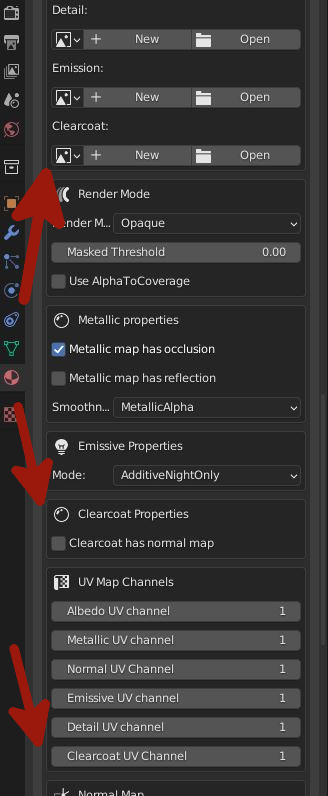
matl props tab cleacoat items.JPG
 
Last edited:
For those that don't know what a Clear Coat map is in P3D v5+:

The Clear Coat map comprises of 2 or 3 textures packed in the channels within a single RGB or RGBA texture. The 3 textures are the "Amount", and "Smoothness", optionally the x-component (or red channel of a standard Normal map) and the y-component (or green channel of a standard Normal map) of a Normal map. This map should not be used for any of your "Metallic" materials. Think of the Clear Coat map for materials that are usually waxed or lacquered.

The "Amount" (placed in the Red Channel) is composed of pure black (0.0 - matted or turned off) and pure white (1.0 - full amount). Any values between 0.0 to 1.0 are represented with gray tones. The numerical values can be used for procedural textures and baking.

The "Smoothness" (placed in the Green Channel) is similar in numerical values to the "Amount". Pure black (0.0) is unsmooth and pure white (1.0) will give you the strongest reflection.

  • Note: Within the Shading Editor (sometimes called the Node Editor), the green channel is being "inverted". This is because Blender is looking for a Roughness map and P3D requires a "Smoothness" map. This is Not the same "Smoothness" map that is used within your "Metallic" map.
Optionally, The Clear Coat Normal map (placed in the Blue and Alpha Channels) consists of the x- and y-components of a normal map. The x-component (the red channel of a standard normal map) is placed in the Blue channel The y-component (the green channel of a standard normal map) is placed in the Alpha Channel. :
  • Note: Just like the Standard Normal map used in P3D, the Clear Coat Normal map is a DirectX-format normal map.
The wiki has been updated with this information.

Hope this helps!
 
Last edited:
Back
Top