Follow along with the video below to see how to install our site as a web app on your home screen.
Note: This feature may not be available in some browsers.
Which the release of FS2020 we see an explosition of activity on the forun and of course we are very happy to see this. But having all questions about FS2020 in one forum becomes a bit messy. So therefore we would like to ask you all to use the following guidelines when posting your questions:
Tag FS2020 specific questions with the MSFS2020 tag.
Questions about making 3D assets can be posted in the 3D asset design forum. Either post them in the subforum of the modelling tool you use or in the general forum if they are general.
Questions about aircraft design can be posted in the Aircraft design forum
Questions about airport design can be posted in the FS2020 airport design forum. Once airport development tools have been updated for FS2020 you can post tool speciifc questions in the subforums of those tools as well of course.
Questions about SimConnect can be posted in the SimConnect forum.
Any other question that is not specific to an aspect of development or tool can be posted in the General chat forum.
By following these guidelines we make sure that the forums remain easy to read for everybody and also that the right people can find your post to answer it.
Has anyone been successful in creating cross-plane vegetation or anything similar with non horrid shading?
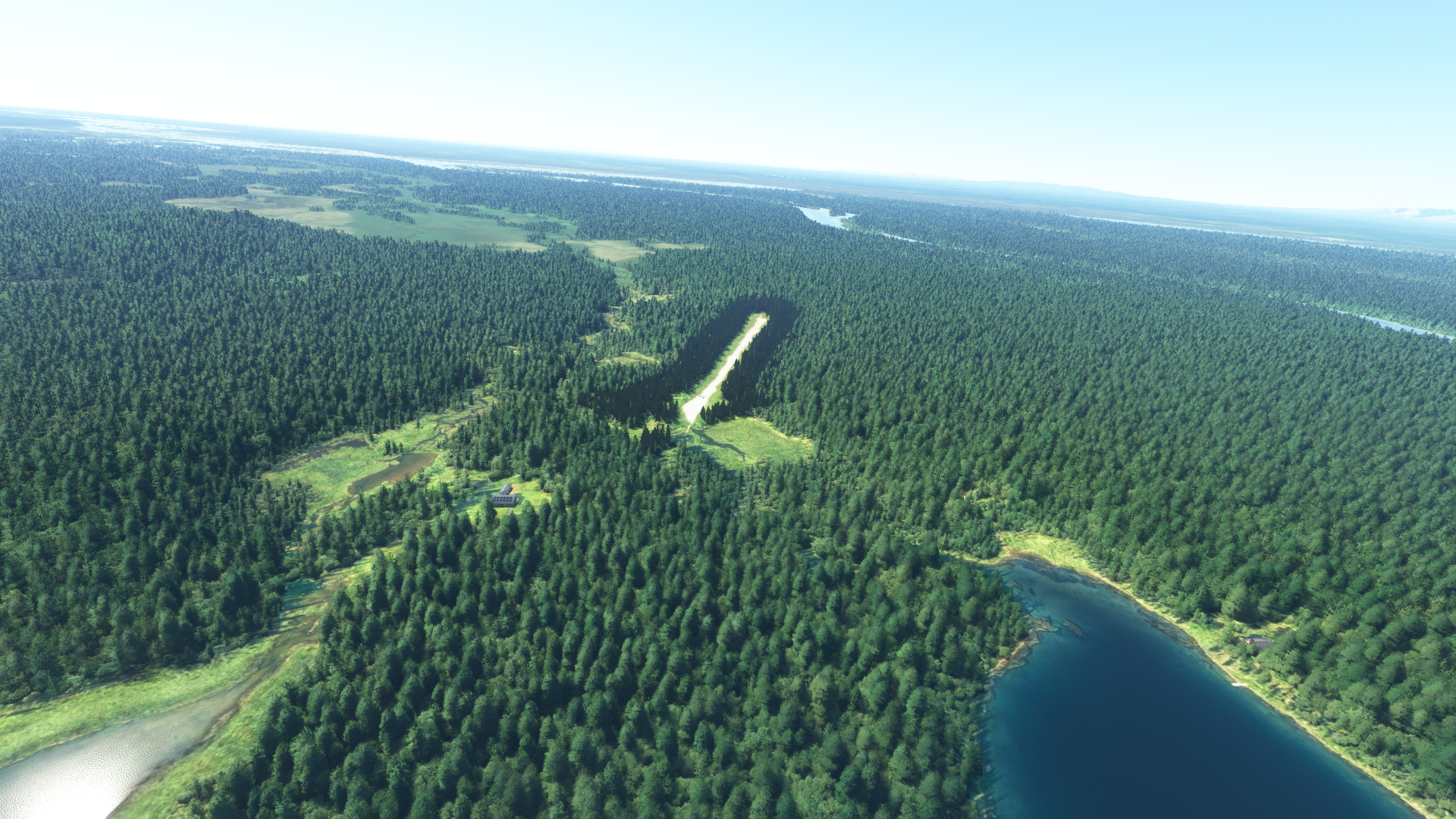
I have created tons of cross plane vegetation in FSX & P3D, but I can seem to get the shading right in MSFS. I have some 3D trees, where I have exported a 2D render of each model and created a cross-plane model for the last LOD. The main reason for doing this is that MSFS auto decimates the 3D trees to the point where they don't fill out the area at all, until you get fairly close to them. Having the 2D style LOD allows me to fill out the area from far away, so that there isn't just a big hole in the default trees where the airstrip is.
Although it works 100% as I want it to when it comes to draw distance, I have been unable to get the "backface" shading to look decent.
I am not using a double sided material, but opted to have a proper face on each side, as there are known backface shading issues with double-sided materials in MSFS. I have tried two different methods for shading.
1. Leaving default face normal orientation results in the face not pointing towards the sun becoming extremely dark. It can be mitigated a bit with Albedo color, but still looks pretty bad.
2. Normals edited to point up the Z axis (FSX/P3D style) offer a more consistent flat shading, however the faces not pointing towards the sun become extremely overexposed.
I have also added custom Split Normals data in Blender to force flat shading. Anyone have any other ideas as to what I could do to correct this shading issue? I'm currently working in Blender 3.0.
Thanks!
Is MSFS decimating the trees because they are too small to view at a distance? In that case the simple solution might be to place a triangle below the bottom of the tree (maybe 30 metres, maybe more). This makes the object larger as far as MSFS is concerned so it's less likely to automatically hide the object.
Is MSFS decimating the trees because they are too small to view at a distance? In that case the simple solution might be to place a triangle below the bottom of the tree (maybe 30 metres, maybe more). This makes the object larger as far as MSFS is concerned so it's less likely to automatically hide the object.
I'm using 3D trees surrounding the entire runway, because the default trees look horrid up close and do not allow me to add any sort of depth to the forest area surrounding the runway. The default trees and shrubs do blend in near the outer edge, but don't go all the way to the runway edge. Thus when the 3D trees get decimated by the sim, it leaves an empty area where the 3D trees are (When approaching from a distance). This is why I'm using a cross-plane style at a lower LOD. They do not get decimated as easily due to the larger poly faces, and it also means that I can shed off thousands of polys when I don't need them at a distance. I have also extended on the range by adding a large invisible plane. The 3D trees still become decimated if I do this to them, so cross plane on a lower LOD so far is the only method that allows me to force the visibility distance that I want.
Circling back to my original question. I just need to figure out the normal shading issue. Everything else is working as I need it to.
I think the default trees are made using multiple planes (maybe 16 or more arranged in a circle around the centre of the tree, so a lot more than the usual 2 cross planes we used in FSX) and what appears to be a fresnel ramp so only the planes facing you are visible. Fresnel is one of the MSFS material types but I've never had the need to use it myself yet in MSFS, I have used fresnel ramps in FSX to create approach lights so that they are only visible when on-axis. The tree texture itself has a normal (bump) map to give the leaves depth.
I know that MSFS will remove parts from a model if they are too small on screen so I'm wondering if the branches of your trees are individual parts and that is what MSFS is doing. Is that correct? If so I'd try merging the parts of your tree into a single mesh which should stop MSFS removing the branches.
I know that MSFS will remove parts from a model if they are too small on screen so I'm wondering if the branches of your trees are individual parts and that is what MSFS is doing. Is that correct? If so I'd try merging the parts of your tree into a single mesh which should stop MSFS removing the branches.
Probably. I've had a look at the Fresnel Ramp material in Blender with the Asobo exporter. It doesn't seem to be any different from a Standard MSFS material at least from the setup of the material. So I don't even know if it will work. This is out of my area of experience so I'm really just speculating. What I'd do is create a single planed tree and put them in a circle all pointed inward and then sit in the middle of that circle and adjust the time of day. This is effectively what I think the MSFS trees are doing with their fresnel ramps. Just pointing a single plane towards the user. If the circle of trees worked then you'd at least know that the shading worked then you've just need to figure out the fresnel ramp.
I have not. I did have the fake terrain material selected at one point, but I was thinking that it didn't give me a blend or mask option. I'll have to go back and look again.
I actually had a model looking pretty good a few days ago, but I tweaked one setting, and did all my other tree models the same, and now they are all messed up again. I even undid the setting I tweaked on my once working tree model, and it still has the same shading issue, so I'm kind of at a loss with this method.
I'll check out fake terrain, and maybe decal, but if I cant get results with any of those, I may just drop the idea until something changes. I'd rather have a LOD issue than trees that are noticeably different than the surrounding forest..
Has anyone found a feasible solution to the problem? I'm hitting a wall with alpha plane shading/lighting and I'm slowly running out of options/hacks to get it working. Nothing I've found and I came up with seem to work.
Has anyone found a feasible solution to the problem? I'm hitting a wall with alpha plane shading/lighting and I'm slowly running out of options/hacks to get it working. Nothing I've found and I came up with seem to work.
Using Fake Terrain instead of standard works for me. If I do cross-plane, I'll bring it into Model Converter X and apply Vertical Normal so that it's lit evenly. If it's a 3D, I just go full roughness and use Fake Terrain.
Yes, I noticed that fake terrain material works much better than the standard, however, it still is not perfect. I guess I have just to go with it. Thank for your help! Much appreciated!
Using Fake Terrain instead of standard works for me. If I do cross-plane, I'll bring it into Model Converter X and apply Vertical Normal so that it's lit evenly. If it's a 3D, I just go full roughness and use Fake Terrain.
Has anyone been successful in creating cross-plane vegetation or anything similar with non horrid shading?
I have created tons of cross plane vegetation in FSX & P3D, but I can seem to get the shading right in MSFS. I have some 3D trees, where I have exported a 2D render of each model and created a cross-plane model for the last LOD. The main reason for doing this is that MSFS auto decimates the 3D trees to the point where they don't fill out the area at all, until you get fairly close to them. Having the 2D style LOD allows me to fill out the area from far away, so that there isn't just a big hole in the default trees where the airstrip is.
Although it works 100% as I want it to when it comes to draw distance, I have been unable to get the "backface" shading to look decent.
I am not using a double sided material, but opted to have a proper face on each side, as there are known backface shading issues with double-sided materials in MSFS. I have tried two different methods for shading.
1. Leaving default face normal orientation results in the face not pointing towards the sun becoming extremely dark. It can be mitigated a bit with Albedo color, but still looks pretty bad. View attachment 81239
I did some more research on this topic from the aspect of texture atlas Material utilization, and I thought you might find this interesting, considering your work with both Grasses and misc. Vegetation, as well as Tree 3D modeling / run time rendering.
I did a search of the MSFS SDK Docs online site with Atlas as the query string; (2) results seemed potentially related to my inquiry:
THE MATERIAL INSPECTOR
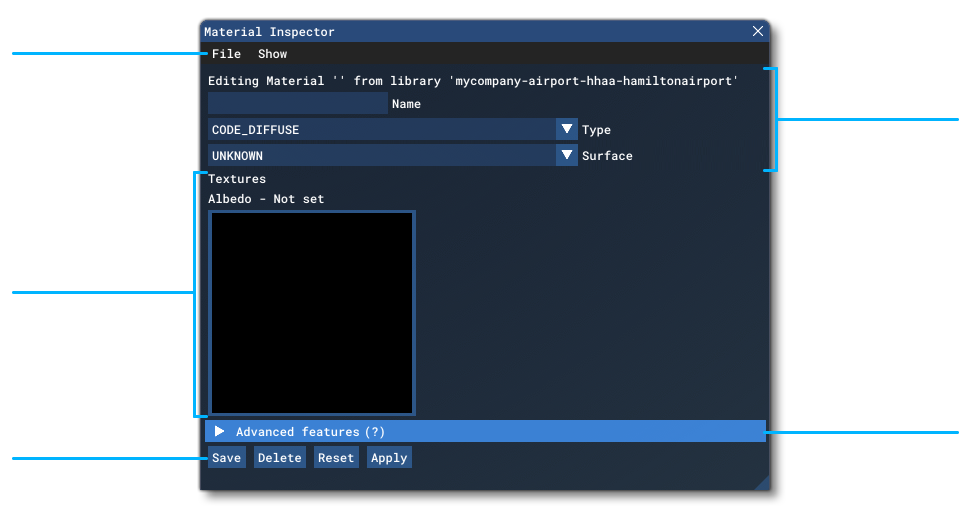
The Material Inspector window is a window that is opened as part of The Material Editor. This window is used to specify and edit the properties of any single material. You can open this window by double-clicking on a material, or by using the right mouse button on a material and selecting "Open", or by using the View menu option.
At the top of the window you have the various Menu items (explained on the Inspector Menus page), and then underneath that you have the Material Data section, with the following options:
Information
Here you can see the material that is currently being edited and the package that it belongs to.
Name
This input field permits you to give the material a name, or edit the name of an existing material. Changes must be saved to be accepted.
Type
This input will show a menu with different options for the material type. The available options will depend on the editor that the material is to be used in. For example, The Scenery Editor will have only the CODE_DIFFUSE type, while The Visual Effects Editor will have others. The possible types and the bitmaps they require are:
CODE_AFTERBURNER - Currently this material type requires no bitmaps, and any supplied with the images will not be used. This material type will also have the Additional Parameter, Power.
NOTE: The CODE_HEATDEFORM and CODE_AFTERBURNER types are only useful within The Visual Effects Editor and should not be used anywhere else.
Surface
This option is only available for materials that are going to be used in The Scenery Editor. It is a list of different surfaces that can be assigned to the material being defined. Each surface option can have varying effects on the final look and attributes of the material, as some of the surface types will add an additional "detail mask" to the material, while others will affect gameplay elements (like spawning VFX particles when an aircraft lands on them), and some may even affect how items in the world simulation are rendered, like vegetation.
"Textures
Here you can select and preview a bitmap to use as a texture within the material you are defining. For a new material, this will be blank, and you should click on the texture to open a file explorer, which will allow you to browse to the texture image you want to use. Images should be a power of 2 in size (eg: 64x64, 256x256, etc...) and be authored as PNG, TIF, DDS or BMP files.
Initially there will only be shown an Albedo texture option, but you can use the Show menu of the Inspector window to enable other texture inputs. The inputs available will depend on the context in which the material being created is to be used.
You can mouse over any of the added textures to see the relative path to the bitmap being used as well as its size on disk.
Texture Arrays
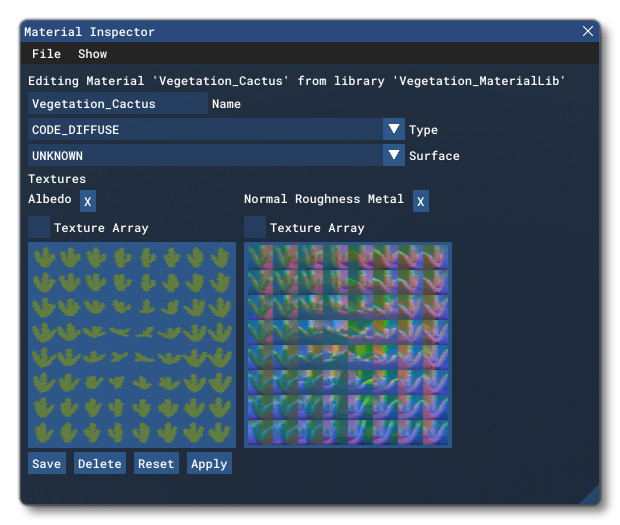
The texture array option is used specifically for materials that will be used in Biomes And Vegetation configuration. Vegetation materials in general require a minimum of two textures: an albedo texture atlas and a normal/roughness/metal texture for the atlas. This is because vegetation is rendered using octahedral impostors, which require a very specific texture setup, as shown in the image below:
An additional feature that is unique to vegetation is the ability to specify an array of textures that can be used to generate multiple variations from a single material. To set these up, you need to select the Texture Array option, then click the texture box to open the file explorer and select 2 or more texture atlas files to use. On clicking "Open", all the textures will be added. You must do this for both the albedo and normal/roughness/metal textures, ensuring that both have the same number of textures in the array. You can then use the <Impostor /> element in the vegetation Species Definitions file to select the index of the texture array to use, permitting you to have one material with several visual variations within it."
On the resulting MSFS SDK Docs Material_Editor page, I was intrigued by the "Octahedral Imposters" citation, so I chased that link here:
PS: IIRC, you have experience using Global Mapper, and as there may be a way to form "primitive" Tree Octahedral Imposter hemispheres via a LiDAR DSM-derived photogrammetric TIN, that use a modified aerial texture image Material "drape", I was curious if you explored this option:
AFAIK, Sketchup may be able to create the Octahedral Imposter "primitive" hemispheres either from a imported Global Mapper LiDAR DSM-derived photogrammetric TIN, and can then utilize a Projected aerial texture image Material "drape".
Alternatively, one may construct a true hemispherical Octahedron in Sketchup via a Ruby plugin script:
As far as I understand it: The Atlas textures are what MSFS is using for the default vegetation and is assigned with a polygon. The Biomes only define the type of vegetation models. So it's not a one vs. the other, but both in unison. I think you would need to create a new or alter a biome to get custom trees.
I have not tried this method yet, as I've not taken on any projects that would require custom vegetation on a large scale. I'm keeping my projects smaller and higher detail these days.
On topic of the greenhouse glass, I'm surprised you remember that topic.. I feel like I've ran into and had to solve so many issues that I forget half the topics I've made. I'll find myself searching about an issue and run into an old thread of mine where I solved the issue years back.. lol
---
As I mentioned above, Using full roughness and Fake Terrain is working well for me in most cases. For smaller vegetation it does great, but I am running into some Alpha issues on my 3d trees, where if you view them against the sky as a background, they become very sparse and transparent looking. I haven't been able to notice this with any of my other vegetation, but I'm thinking it's because I have to get so close to them to be able to see the sky. And if I do the same for my trees, they become more dense.
It's only noticeable when looking at a distance, so I wonder if it has to do with mips...? Not sure what to do in that case since MSFS generates them automatically when it builds the DDS. And manually editing them would be a pain to maintain with an object library I update so frequently..
As far as I understand it: The Atlas textures are what MSFS is using for the default vegetation and is assigned with a polygon. The Biomes only define the type of vegetation models. So it's not a one vs. the other, but both in unison. I think you would need to create a new or alter a biome to get custom trees.
I have not tried this method yet, as I've not taken on any projects that would require custom vegetation on a large scale. I'm keeping my projects smaller and higher detail these days.
On topic of the greenhouse glass, I'm surprised you remember that topic.. I feel like I've ran into and had to solve so many issues that I forget half the topics I've made. I'll find myself searching about an issue and run into an old thread of mine where I solved the issue years back.. lol
---
As I mentioned above, Using full roughness and Fake Terrain is working well for me in most cases. For smaller vegetation it does great, but I am running into some Alpha issues on my 3d trees, where if you view them against the sky as a background, they become very sparse and transparent looking. I haven't been able to notice this with any of my other vegetation, but I'm thinking it's because I have to get so close to them to be able to see the sky. And if I do the same for my trees, they become more dense.
It's only noticeable when looking at a distance, so I wonder if it has to do with mips...? Not sure what to do in that case since MSFS generates them automatically when it builds the DDS. And manually editing them would be a pain to maintain with an object library I update so frequently..
Regarding your alpha issue, and I think it is and not anything related to mip maps, try to either disable fake terrain and go standard and/or play around with you alpha cut-off value, in this case I would decrease it and see if it improves things.
I ran into the same issue and got rid of it by doing the two things above, but I did them in the same iteration, so I don't know which of the two or a combination of them did the trick.
Regarding your alpha issue, and I think it is and not anything related to mip maps, try to either disable fake terrain and go standard and/or play around with you alpha cut-off value, in this case I would decrease it and see if it improves things.
I ran into the same issue and got rid of it by doing the two things above, but I did them in the same iteration, so I don't know which of the two or a combination of them did the trick.
I haven't had any luck with lower cutoff-values (that was my first thought), but I have just been changing them in the gltf with a text editor since it's faster than re-exporting 3 LODs across 9 models. Maybe it's something that needs to be re-exported completely. Not sure if that writes info to the bin or if it's all in the gltf? I may also try to run it through MCX as that's what I've been using for my other vegetation.
I'll try that and worse case, I'll just put it back to Standard and live with the bright highlighting. It sucks that Fake Terrain handles lighting so much better for vegetation, but has issues with alpha blending.
I'll try that and worse case, I'll just put it back to Standard and live with the bright highlighting. It sucks that Fake Terrain handles lighting so much better for vegetation, but has issues with alpha blending.
What you also could try is, assuming you are using AO in your comp textures for your vegetation, to lower the red channel (AO) to black/almost black. I found that this affects the lighting of objects as well as cross-plane vegetation. A drawback of that method is, that as soon as the lighting is absent (shadows) from the object's surface, it turn really dark/black. I think this directly correlates to the "amount" of AO within the comp texture.
This site uses cookies to help personalise content, tailor your experience and to keep you logged in if you register.
By continuing to use this site, you are consenting to our use of cookies.