
• Which the release of FS2020 we see an explosition of activity on the forun and of course we are very happy to see this. But having all questions about FS2020 in one forum becomes a bit messy. So therefore we would like to ask you all to use the following guidelines when posting your questions:

    • Tag FS2020 specific questions with the MSFS2020 tag.
    • Questions about making 3D assets can be posted in the 3D asset design forum. Either post them in the subforum of the modelling tool you use or in the general forum if they are general.
    • Questions about aircraft design can be posted in the Aircraft design forum
    • Questions about airport design can be posted in the FS2020 airport design forum. Once airport development tools have been updated for FS2020 you can post tool speciifc questions in the subforums of those tools as well of course.
    • Questions about terrain design can be posted in the FS2020 terrain design forum.
    • Questions about SimConnect can be posted in the SimConnect forum.

    Any other question that is not specific to an aspect of development or tool can be posted in the General chat forum.

    By following these guidelines we make sure that the forums remain easy to read for everybody and also that the right people can find your post to answer it.

MSFS20 Decal workflow in 3DS MAX

Messages
1,041
Country
ca-ontario
Hi everyone!
Looking through SDK and online resources, I found almost no info on how to actually place decals on surfaces of 3D objects (not ground polygons). So, I went on to do some tests, and the only way I can deduce how to do it is:

  • Clone the polygon you are trying to put a decal on
  • Assign it a decal material with BLEND alpha mode and a decal texture (containing transparency, if irregular shape)
  • Set a draw order value (as per SDK, I guess a higher number indicates the decal priority)

While this works fine, I was hoping there was a more elegant way of overlaying 2 materials on a single surface or something.
So, is this workflow correct?

Ok, so assuming this is the correct workflow, here is the result:
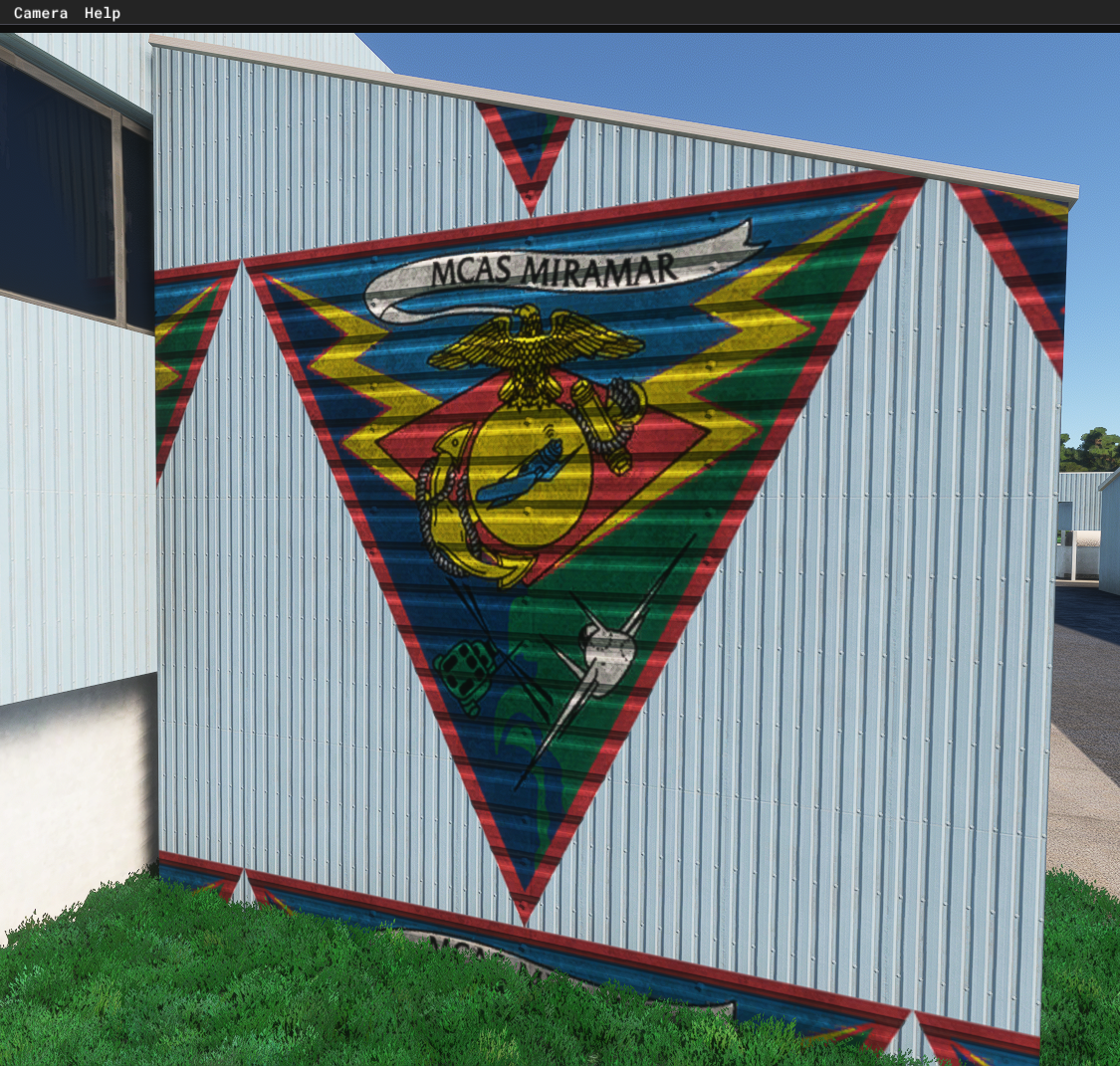
1709920631544.png

There are two polygons on this geometry, one right on top of the other (or, in front of the other, in this case), and since this is a DECAL material, its properties prevent it from Z-fighting with the background wall.

This is working fine, however, I'd like to have the underlying material's NORMAL map (vertical siding effect) to show on (or through) the decal as well, as if the decal is painted on the vertical siding. Right now, I have the horizontal siding map applied to the DECAL material, and it works fine. But obviously, that's not the effect I am looking for. I suppose I could have the same normal map applied to the decal as well, but that would require some precise UV sizing an matching, which I'd like to avoid.

One thing I am going to test is, set the transparency of the decal to, say, 80%, and let the background surface normal map show through. However, this will cause the decal to become washed out a bit, and I want decal's full, vibrant colors to show.

Any hints or pointers on how to accomplish this?
 
Last edited:
Ok, so this is the test with 80% transparency on the decal, and yes, as I thought, it works, but the decal is now washed out.
1709922691397.png


I also tried using material's 3DS MAX property "Decal per component blend factors - Color:" setting to make the color transparent, at 0.8, and the results are worse - the surface under the decal shows through but without the normal map effect.

1709922479947.png
 
Decals were provided to label cockpit instruments, that said people have published aircraft with exterior model decals, mostly for greater fidelity for things like roundels I believe. You could try this technique:

I don't know if what you have is a flat wall with tiled albedo/normals, or if it is actual geometry, but you'll want model up some geometry to get the AO and normal map representation onto your logo image. Once the wall has physical depth, you can bake that into a normal map and an AO image, also make one more render that will become your albedo texture, it could be a simple screen grab but it has to match the other image dimensions. At this point you can ditch the geometry if you want, go back to a flat wall, but personally I wouldn't sweat it, MSFS is generous on polys.

So now you have a full sized wall texture with a full sized normal texture and an AO texture to go with it. Take your wall screen grab and superimpose your logo wherever it should go, that will be the albedo. Now paste the AO render into the red channel to make your logo comp texture, color the green and blue channels the level of shine and reflection you want and save that as your comp texture. Voila, you now have a whole wall texture with normal map and shadow shaded logo.
 
Decals were provided to label cockpit instruments, that said people have published aircraft with exterior model decals, mostly for greater fidelity for things like roundels I believe. You could try this technique:

I don't know if what you have is a flat wall with tiled albedo/normals, or if it is actual geometry, but you'll want model up some geometry to get the AO and normal map representation onto your logo image. Once the wall has physical depth, you can bake that into a normal map and an AO image, also make one more render that will become your albedo texture, it could be a simple screen grab but it has to match the other image dimensions. At this point you can ditch the geometry if you want, go back to a flat wall, but personally I wouldn't sweat it, MSFS is generous on polys.

So now you have a full sized wall texture with a full sized normal texture and an AO texture to go with it. Take your wall screen grab and superimpose your logo wherever it should go, that will be the albedo. Now paste the AO render into the red channel to make your logo comp texture, color the green and blue channels the level of shine and reflection you want and save that as your comp texture. Voila, you now have a whole wall texture with normal map and shadow shaded logo.
Thanks, Rick.

Yes, perhaps mostly for aircraft, but scenery as well. Here is the original default Microsoft scenery (Miramar Air Base, San Diego, CA) from where I took the test decal.
1709937517218.png

As you can see, it is pasted over a wall, but unfortunately there is no visible background normal map...

Yeah - I have a simple, repeating tile on the wall. All I need is a decal that picks up its normal. Baking the thing and creating a custom map seems like more trouble than this is worth. I think the way to go is to create a normal map for the decal that is close in UV size to the wall, and then tweak the background tiling until it gets aligned. I just thought there would be a more elegant/quicker way... Thanks again for your input.
 
Duplicate the face for the decal. You should separate the mesh for that decal face. Create the decal material with the decal albedo and use the normal of the underlying surface... that way the normal looks right. You may need to make a duplicate of the decal and rotate it in a paint program if the normal is 'off' 90 degrees. Or you could make a duplicate of the normal, rename it, and rotate or adjust as desired. You can adjust the metallic and roughness. The draw order isn't going to be of any use unless you have multiple layers of decals. It only orders the decals themselves.

The UV should probably just match the underlying mesh, and adjust the images in a paint program as needed.
 
Last edited:
Yes, perhaps mostly for aircraft, but scenery as well. Here is the original default Microsoft scenery (Miramar Air Base, San Diego, CA) from where I took the test decal.
View attachment 91791
This is not what you have going on, this is a single polygon with a texture on it and the background is completely flat, the way they have it placed it doesn't even intersect the building AO. It reminds me that I read that some guy used this floating polygon trick on his aircraft, but he used a tool like Surf Deform to get it to melt down onto the surface of the model. By the way I think he also used partial transparency like you are trying and he'd commented that adjusting his roughness to be non reflective improved the appearance. Your situation however, is superimposed over thick vertical metal siding and I don't think you can have both textured floating polygon and deeply textured wall without visible anomalies. You pretty much have to have geometry behind that logo to get those shadow lines onto it, you see.

You could...take your tiled texture and tile it out in Photoshop, same thing with the normal. Once you have a "pattern" the size of your wall, you can just paint your logo onto that. It works, you'll have to scale each to make it all fit together and you lose a bit of detail at both ends, you'll lose siding detail scaling it down to a manageable size for a single wall and you'll lose logo detail scaling that up, but it is essentially the same thing as baking to texture.

3ds Max actually has two separate and complete tools for rendering geometry, one's called bake to texture and the other is render to texture. They seem more or less identical but maybe from different publishers and I've not yet found a way to bake to existing textures. Aside from selecting options like normal, anisotropic occlusion, image format and size, using the render features is about as easy as snapping off a screen shot, you should give it a try. That is one thing about 3ds Max, there are instructional videos for every feature, plus Learning Desk and it seems like there is no one "right way" to do most things.
 
Duplicate the face for the decal. You should separate the mesh for that decal face. Create the decal material with the decal albedo and use the normal of the underlying surface... that way the normal looks right. You may need to make a duplicate of the decal and rotate it in a paint program if the normal is 'off' 90 degrees. Or you could make a duplicate of the normal, rename it, and rotate or adjust as desired. You can adjust the metallic and roughness. The draw order isn't going to be of any use unless you have multiple layers of decals. It only orders the decals themselves.

The UV should probably just match the underlying mesh, and adjust the images in a paint program as needed.
Thanks Rick! Just as I thought. The only catch is, I don't think you can just "rotate" the NORMAL map (the one that has normals in R and G channels) - you can rotate the displacement map (grayscale map) and then use NVidia normal map filter to create a new normal map out of it. Rotating a normal map results in incorrect shading.

Another problem is, the above works if the underlying surface is the same scaling as the decal. Mine is not. I need the underlying slats to be smaller than the decal overlaid on top, and that then presents a problem - I would then need to figure out the scaling factor and re-create a scaled version of the decal normal, which is what I am trying to avoid.
 
Okay - I think I found a neat trick which will let me do this without re-creating any new normal textures:
1710015833301.png


You can set decal's DETAIL normal texture to the same normal texture as the wall. The advantage of this approach is, the detail texture has independent parameters for UV scaling and offsets! So, you can adjust those to match the underlying wall texture! It works well, except getting the scaling is a bit of a PITA, because my 3DS MAX viewport refuses to show the detail normal texture in the viewport, where I could dynamically scale it until I get a match. So, I temporarily assign decal's DETAIL ALBEDO texture to the wall's albedo texture, and use "detail UV scale" spinner until they align (in 3DS MAX, you can see a faint detail albedo texture superimposed on the decal, which can help in aligning). I seem to have my decal detail normal texture flipped vertically, so I need to fix that too.

Also, the parameter for the "detail UV scale" works in reverse of what I would think scaling would be - the larger the number, the smaller the pattern becomes. It is more like "tiling", not "scaling"
I also had to rotate the decal texture since my underlying normal pattern is rotated.

Anyway, I think this will work fine for what I need it to do! Thanks everyone for your input!

[EDIT] Ok, got the flipping issue sorted, all aligned and working well:
1710018575890.png
 
Last edited:
Hmm, unless I'm entirely missreading this topic, all you have to do is to set "Decal per component blend factor" for "Normal" to 0.0 in your decal material and the normal map of the underlaying material will be used.
...and while you're at it set everything else except for "Color" to 0.0, too.
Basically, just use an albedo texture as a decal and switch everything else off.
 

Attachments

  • DecalPerComponentBlendFactor.jpg
    DecalPerComponentBlendFactor.jpg
    42.2 KB · Views: 248
Last edited:
Hmm, unless I'm entirely missreading this topic, all you have to do is to set "Decal per component blend factor" for "Normal" to 0.0 in your decal material and the normal map of the underlaying material will be used.
...and while you're at it set everything else except for "Color" to 0.0, too.
Basically, just use an albedo texture as a decal and switch everything else off.
Well, IF I wanted it quick, simple and easy, then yes, your method works perfectly!

Kidding 😄 Works great in 3DS MAX as well!! Thank you, sir, for this perfectly simple and elegant solution!

1710094311687.png
 
Back
Top