• Which the release of FS2020 we see an explosition of activity on the forun and of course we are very happy to see this. But having all questions about FS2020 in one forum becomes a bit messy. So therefore we would like to ask you all to use the following guidelines when posting your questions:

    • Tag FS2020 specific questions with the MSFS2020 tag.
    • Questions about making 3D assets can be posted in the 3D asset design forum. Either post them in the subforum of the modelling tool you use or in the general forum if they are general.
    • Questions about aircraft design can be posted in the Aircraft design forum
    • Questions about airport design can be posted in the FS2020 airport design forum. Once airport development tools have been updated for FS2020 you can post tool speciifc questions in the subforums of those tools as well of course.
    • Questions about terrain design can be posted in the FS2020 terrain design forum.
    • Questions about SimConnect can be posted in the SimConnect forum.

    Any other question that is not specific to an aspect of development or tool can be posted in the General chat forum.

    By following these guidelines we make sure that the forums remain easy to read for everybody and also that the right people can find your post to answer it.

MSFS20 Draw order issue related to NORMAL format?

Messages
142
Country
ca-ontario
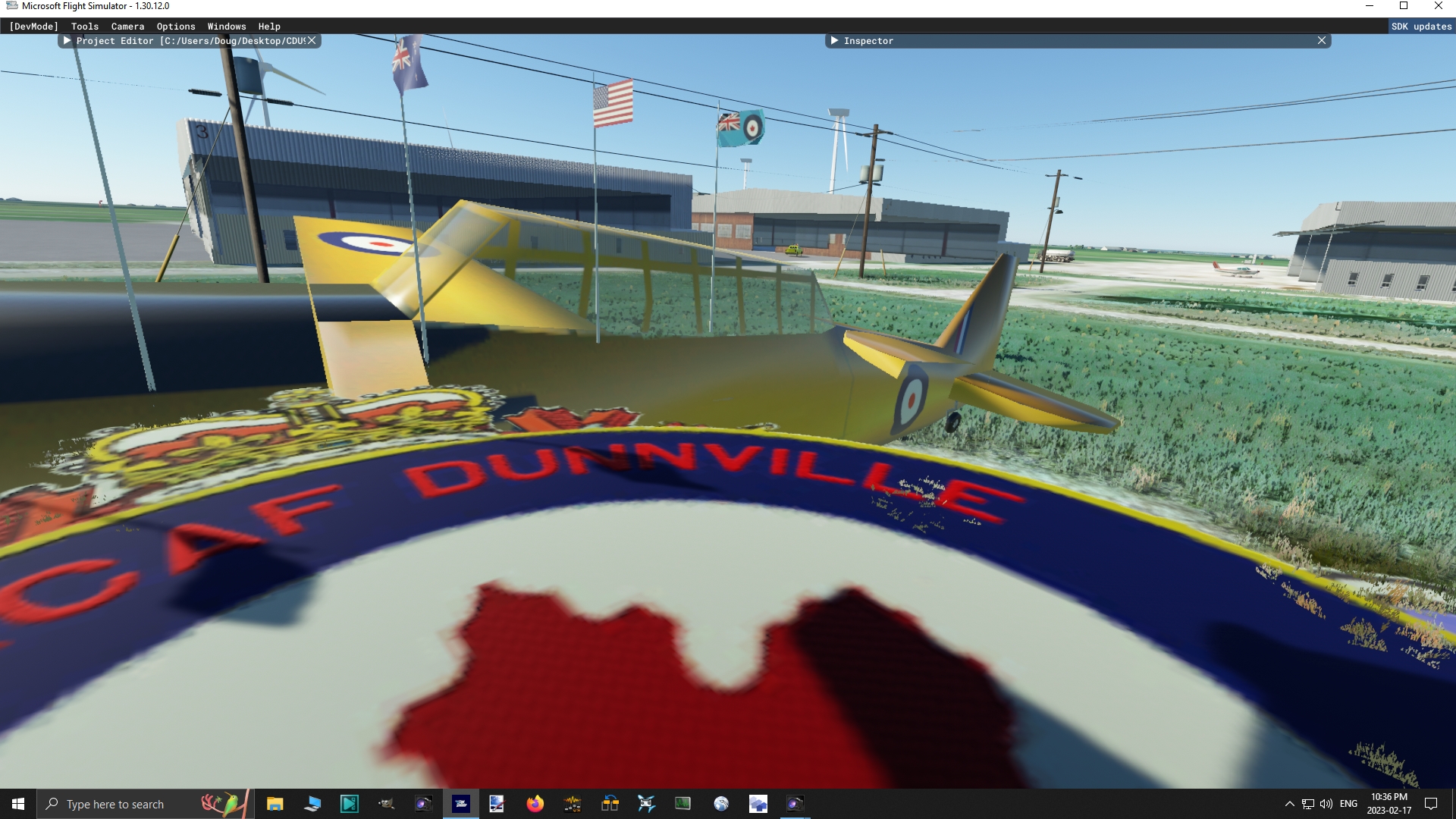
Good day, I wonder if someone can help me. I'm refurbishing an airport I created in GMax for FSX and bringing into MSFS. It's been going great - until I created and introduced NORMALs. Referring to the attached screenshots, you can see how there is no longer any order to the drawing of the objects. Well, not all. Some are displaying correctly. Anywhere where there is a transparency seems affected. I used Nvidia Texture Tools Exporter Standalone to create BC5u/2D texture/normal map/tangent space format/ Normal textures. They produced the purple 8bit textures, I upped that to 16bit in Gimp and resaved them to PNG. Can someone show me where I went wrong, and suggest a fix? To note, when I don't include the new normal files in the project's texture folder, everything is correctly displayed, so it's somewhere in the creation of these new files, I'm thinking.. I attached a copy of one. Thanks.
Image2.jpg
Image5.jpg
 

Attachments

Last edited:
If you are doing the conversion using MCX, it will automatically flag your texture as "blend," if there is any level of transparency in the albedo texture. When a "skin" texture is transparent, everything behind it, superimposes in front of it which resembles a change in draw order. Normal maps have no relation to drawing order whatsoever, but adding them exposes transparent textures to the filter, if you use MCX.
 
Good day, I wonder if someone can help me. I'm refurbishing an airport I created in GMax for FSX and bringing into MSFS. It's been going great - until I created and introduced NORMALs. Referring to the attached screenshots, you can see how there is no longer any order to the drawing of the objects. Well, not all. Some are displaying correctly. Anywhere where there is a transparency seems affected. I used Nvidia Texture Tools Exporter Standalone to create BC5u/2D texture/normal map/tangent space format/ Normal textures. They produced the purple 8bit textures, I upped that to 16bit in Gimp and resaved them to PNG. Can someone show me where I went wrong, and suggest a fix? To note, when I don't include the new normal files in the project's texture folder, everything is correctly displayed, so it's somewhere in the creation of these new files, I'm thinking.. I attached a copy of one. Thanks.View attachment 86540 View attachment 86539
try it
 
try it
Looking for the Frame Buffer Blend/ Source Blend settings. Don't see them.
 
"Frame Buffer Blend" and "Source Blend" setting are not supported by MSFS, that is why the do not appear on the MSFS specific attributes panel. All he has done, is switch the alpha transparency mode from "blend" to "dither," which removes any blending, obviously. The texture will still render with transparent areas, but there is no "fade" with dither, so it can work for coarse transparencies like wire fences.

If your model is the airplane over the dias and the texture incorporates the transparent glass, you are unable to escape the transparent texture issue. I recommend polygon color for glass to simplify this situation, otherwise, you will need to export both parts separately, glass and fuselage, even though they are the same texture. In MCX you will designate one of the textures as a glass material, transparent, and the other, solid and opaque. This adds a draw call, but it is the about the only way to have opaque and transparent in hte same texture. Otherwise, you'd have to create and implement a blend mask.
 
"Frame Buffer Blend" and "Source Blend" setting are not supported by MSFS, that is why the do not appear on the MSFS specific attributes panel. All he has done, is switch the alpha transparency mode from "blend" to "dither," which removes any blending, obviously. The texture will still render with transparent areas, but there is no "fade" with dither, so it can work for coarse transparencies like wire fences.

If your model is the airplane over the dias and the texture incorporates the transparent glass, you are unable to escape the transparent texture issue. I recommend polygon color for glass to simplify this situation, otherwise, you will need to export both parts separately, glass and fuselage, even though they are the same texture. In MCX you will designate one of the textures as a glass material, transparent, and the other, solid and opaque. This adds a draw call, but it is the about the only way to have opaque and transparent in hte same texture. Otherwise, you'd have to create and implement a blend mask.
Thanks for the useful info, very much appreciated.
 
Back
Top