

- Messages
- 243
- Country

Hi guys, probably the most of you could smile for this apparently stupid question, but after a good period of time passed using DXTBmp to prepare my textures I noticed a thing to which previously I did not get enough attention.
In particular I would like to understand better what the "apply alpha to image" command is for. I prepared the texture, imported it in DXTBmp and created the alpha channel using Alpha -> Create alpha template (or the other options). Then I used Alpha -> Refresh alpha and then I save the texture as DXT3. I noticed a little differences of transparency if I use the "apply alpha to image" or not before exporting the texture as DXT3, but I do not understood exactly what the command does.
In particular the reason for which I decided to ask your help is a fact happened this morning:
I prepared a double yellow strips. I would like to obtain a little transparency of the yellow when applied over the asphalt so I created an alpha channel using a grey value of 100 for the part related to the yellow and a value of 0 for the part of the texture that could be completely transparent (the part between the two yellow strips).

Without using the "apply alpha to image" the transparency works quite well except for a very thin white line appearing on the border of the yellow lines (It persists even if I change the "Texture_max_load" parameter in my FS9).
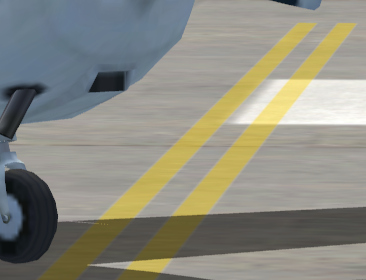
If I use "apply alpha to image" instead I obtain that the lines become grey, but the white thin border does not appears.

The strange is that when I use "apply alpha to image" the main image become all grey like the image I attach

What I did not completely understand?
In particular I would like to understand better what the "apply alpha to image" command is for. I prepared the texture, imported it in DXTBmp and created the alpha channel using Alpha -> Create alpha template (or the other options). Then I used Alpha -> Refresh alpha and then I save the texture as DXT3. I noticed a little differences of transparency if I use the "apply alpha to image" or not before exporting the texture as DXT3, but I do not understood exactly what the command does.
In particular the reason for which I decided to ask your help is a fact happened this morning:
I prepared a double yellow strips. I would like to obtain a little transparency of the yellow when applied over the asphalt so I created an alpha channel using a grey value of 100 for the part related to the yellow and a value of 0 for the part of the texture that could be completely transparent (the part between the two yellow strips).
Without using the "apply alpha to image" the transparency works quite well except for a very thin white line appearing on the border of the yellow lines (It persists even if I change the "Texture_max_load" parameter in my FS9).
If I use "apply alpha to image" instead I obtain that the lines become grey, but the white thin border does not appears.
The strange is that when I use "apply alpha to image" the main image become all grey like the image I attach
What I did not completely understand?