• Which the release of FS2020 we see an explosition of activity on the forun and of course we are very happy to see this. But having all questions about FS2020 in one forum becomes a bit messy. So therefore we would like to ask you all to use the following guidelines when posting your questions:

    • Tag FS2020 specific questions with the MSFS2020 tag.
    • Questions about making 3D assets can be posted in the 3D asset design forum. Either post them in the subforum of the modelling tool you use or in the general forum if they are general.
    • Questions about aircraft design can be posted in the Aircraft design forum
    • Questions about airport design can be posted in the FS2020 airport design forum. Once airport development tools have been updated for FS2020 you can post tool speciifc questions in the subforums of those tools as well of course.
    • Questions about terrain design can be posted in the FS2020 terrain design forum.
    • Questions about SimConnect can be posted in the SimConnect forum.

    Any other question that is not specific to an aspect of development or tool can be posted in the General chat forum.

    By following these guidelines we make sure that the forums remain easy to read for everybody and also that the right people can find your post to answer it.

Editing textures

Messages
25
Country
brazil
Hello guys. I'm trying to edit a texture file for some SODE runway lights (pic below)


Basically I'm trying to leave only the green and blue lights, but when I delete the other ones and save a new file, no lights are shown in P3D.

What could be causing this ?

(this is for my personal use only).

Thanks

Eduardo
 
I assume it has some special formatting that is removed when you save it. Try loading it into a program like DXTBmp and see what it says?
 
I assume it has some special formatting that is removed when you save it. Try loading it into a program like DXTBmp and see what it says?
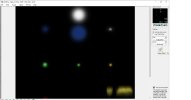
Hello. This is what I get when I load it in DXTBmp.
 

Attachments

  • Untitled.jpg
    Untitled.jpg
    78.6 KB · Views: 35
If you look in the upper left corner of your image you can see that the image is in 32 bit format. Paint programs cannot typically save files in that format. Also, look in the upper right corner, and you can see that it also contains an alpha channel (the small image there).

So to deal with all that:
1. In DXTBmp Alpha/Save (Export?) Alpha Channel (not sure of the exact wording). Saved as a grayscale BMP.
2. If you want to change the transparency of the image, edit the image from step 1. Black = transparent, white is fully opaque.
3. Load your repainted main image into DXTBmp. Note the alpha channel is white.
4. Alpha/Load (import?) Alpha Channel
5. Browse to the image from step 1 or 2 and load into the alpha channel.
6. File/Save As, 32 bit 888 format from the drop down menu.
7. Make sure to not overwrite the image from step 3, you’ll need that in case you need to tweak it later.
8. Use this 888 image in FS.

Hope this helps,
 
If you look in the upper left corner of your image you can see that the image is in 32 bit format. Paint programs cannot typically save files in that format. Also, look in the upper right corner, and you can see that it also contains an alpha channel (the small image there).

So to deal with all that:
1. In DXTBmp Alpha/Save (Export?) Alpha Channel (not sure of the exact wording). Saved as a grayscale BMP.
2. If you want to change the transparency of the image, edit the image from step 1. Black = transparent, white is fully opaque.
3. Load your repainted main image into DXTBmp. Note the alpha channel is white.
4. Alpha/Load (import?) Alpha Channel
5. Browse to the image from step 1 or 2 and load into the alpha channel.
6. File/Save As, 32 bit 888 format from the drop down menu.
7. Make sure to not overwrite the image from step 3, you’ll need that in case you need to tweak it later.
8. Use this 888 image in FS.

Hope this helps,
Thanks for the reply. I will try to do what you’ve said !

Eduardo
 
Back
Top