

- Messages
- 34,350
- Country

I have added some extra functionality to the hierarchy viewer of ModelConverterX in the last two days. This feature to allow filtering in all the nodes was on the wishlist for quite a while already and since I needed it to debug an issue I have now finally added it.
The filtering can be done in two ways. First there is the checkbox in the toolbar to only show nodes of the active LOD. When this checkbox is off, all nodes of the model are shown. When it is selected only the nodes of the currently shown LOD in the preview are shown. So if you are looking for issues in a specific LOD this will help to narrow down the amount of nodes to check.
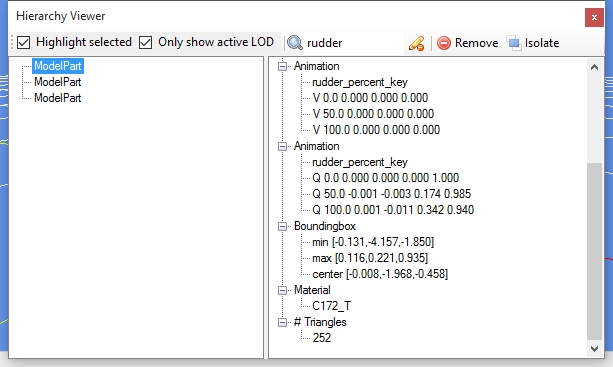
The second way to filter the nodes is even more powerful and that is the search box that you can now also find in the toolbar. If you type any text in this search box only nodes will be shown that match this text. The search is done in material names, animation names, visibility condition names and mouse rectangle names. The picture below shows the default Cessna 172 model where only the rudder parts of the active LOD are shown.
If you clear the search text after you have found the right node, that node will still be selected in the total scenegraph, so that should make it easier to evaluate the parent and child nodes of that specific node.
The isolate button at the toolbar is also new and it will isolate the selected node. What this means is that it will make the selected node the new root node of the model and prune all other nodes. This can be quite destructive so use with care.
Continue reading...
The filtering can be done in two ways. First there is the checkbox in the toolbar to only show nodes of the active LOD. When this checkbox is off, all nodes of the model are shown. When it is selected only the nodes of the currently shown LOD in the preview are shown. So if you are looking for issues in a specific LOD this will help to narrow down the amount of nodes to check.
The second way to filter the nodes is even more powerful and that is the search box that you can now also find in the toolbar. If you type any text in this search box only nodes will be shown that match this text. The search is done in material names, animation names, visibility condition names and mouse rectangle names. The picture below shows the default Cessna 172 model where only the rudder parts of the active LOD are shown.
If you clear the search text after you have found the right node, that node will still be selected in the total scenegraph, so that should make it easier to evaluate the parent and child nodes of that specific node.
The isolate button at the toolbar is also new and it will isolate the selected node. What this means is that it will make the selected node the new root node of the model and prune all other nodes. This can be quite destructive so use with care.
Continue reading...


