
-
Which the release of FS2020 we see an explosition of activity on the forun and of course we are very happy to see this. But having all questions about FS2020 in one forum becomes a bit messy. So therefore we would like to ask you all to use the following guidelines when posting your questions:
- Tag FS2020 specific questions with the MSFS2020 tag.
- Questions about making 3D assets can be posted in the 3D asset design forum. Either post them in the subforum of the modelling tool you use or in the general forum if they are general.
- Questions about aircraft design can be posted in the Aircraft design forum
- Questions about airport design can be posted in the FS2020 airport design forum. Once airport development tools have been updated for FS2020 you can post tool speciifc questions in the subforums of those tools as well of course.
- Questions about terrain design can be posted in the FS2020 terrain design forum.
- Questions about SimConnect can be posted in the SimConnect forum.
Any other question that is not specific to an aspect of development or tool can be posted in the General chat forum.
By following these guidelines we make sure that the forums remain easy to read for everybody and also that the right people can find your post to answer it.
You are using an out of date browser. It may not display this or other websites correctly.
You should upgrade or use an alternative browser.
You should upgrade or use an alternative browser.
FSX:SE How to use the SDK
- Thread starter Flyer50
- Start date
 please?
Pyscen
Resource contributor
- Messages
- 3,040
- Country

What SDK are you referring to? If it is the SDK that is included with FSX: SE then you will need to download and install:
 www.fsdeveloper.com
Prepar3D v1 SDK
Prepar3D v1 SDK. Lockheed Martin removed the SDK from their website, so the download link takes it from the web.archive.org archive.
www.fsdeveloper.com

You need to be clear. Is the version you have FSX-SE (FSX Steam Edition) of FSX Deluxe? Also to take a screen shot you can make the sim run in a window and then take a screenshot. Use ALT+Enter to toggle fullscreen/window.
After you install the SDK (for either FSX-SE or Deluxe) then depending on where you installed it:
1. Navigate to that folder (in my case I installed it in the c:\fsx-se\sdk folder) and you should find a file ConfigSDK.exe Run that and a command prompt will appear
"Are you sure you want to update the SDK tool configuration files to refer to the current Microsoft Flight Simulator X installation path? (Yes/No):" Type Y {Enter} and the program will make the correct path statements where needed.
2.Explore the SDK folders and files and find the following files (note these are as per my path which may differ from yours)
Read up on what these do.
Now to add the "Tools" menu into FSX do this:
(Make note that you change the path to reflect the path where these files are located on YOUR COMPUTER)
Good luck.
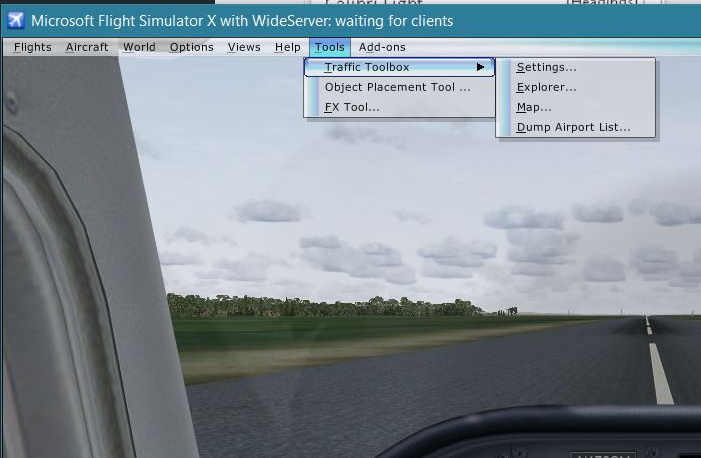
After you install the SDK (for either FSX-SE or Deluxe) then depending on where you installed it:
1. Navigate to that folder (in my case I installed it in the c:\fsx-se\sdk folder) and you should find a file ConfigSDK.exe Run that and a command prompt will appear
"Are you sure you want to update the SDK tool configuration files to refer to the current Microsoft Flight Simulator X installation path? (Yes/No):" Type Y {Enter} and the program will make the correct path statements where needed.
2.Explore the SDK folders and files and find the following files (note these are as per my path which may differ from yours)
C:\FSX-SE\SDK\Environment Kit\Traffic Toolbox SDK\traffictoolbox.dll
C:\FSX-SE\SDK\Mission Creation Kit\object_placement.dll
C:\FSX-SE\SDK\Environment Kit\Special Effects SDK\visualfxtool.dll
Read up on what these do.
Now to add the "Tools" menu into FSX do this:
Navigate to c:\users\<your user name>\AppData\Roaming\Microsoft\FSX
Open it in notepad and it should look like this:There you will find a file called DLL.XML. If it is NOT there then copy/paste it from the SDK -> C:\FSX-SE\SDK\Core Utilities Kit\SimConnect SDK\config
In place of the following:<?xml version="1.0" encoding="Windows-1252"?>
<SimBase.Document Type="Launch" version="1,0">
<Descr>Launch</Descr>
<Filename>DLL.xml</Filename>
<Disabled>False</Disabled>
<Launch.ManualLoad>True</Launch.ManualLoad>
<Launch.Addon>
<Disabled>True</Disabled>
<ManualLoad>False</ManualLoad>
<Name>Addon DLL</Name>
<Path>C:\MyPath\Addon.dll</Path>
</Launch.Addon>
</SimBase.Document>
Replace with:<Launch.Addon>
<Disabled>True</Disabled>
<ManualLoad>False</ManualLoad>
<Name>Addon DLL</Name>
<Path>C:\MyPath\Addon.dll</Path>
</Launch.Addon>
(Make note that you change the path to reflect the path where these files are located on YOUR COMPUTER)
Save the DLL.XML and start FSX and you will find the Tools menu with additional items.<Launch.Addon>
<Name>Traffic Toolbox</Name>
<Disabled>False</Disabled>
<ManualLoad>False</ManualLoad>
<Path>C:\FSX-SE\SDK\Environment Kit\Traffic Toolbox SDK\traffictoolbox.dll</Path>
</Launch.Addon>
<Launch.Addon>
<Name>Object Placement Tool</Name>
<Disabled>False</Disabled>
<ManualLoad>False</ManualLoad>
<Path>C:\FSX-SE\SDK\Mission Creation Kit\object_placement.dll</Path>
</Launch.Addon>
<Launch.Addon>
<Name>Visual Effects Tool</Name>
<Disabled>False</Disabled>
<ManualLoad>False</ManualLoad>
<Path>C:\FSX-SE\SDK\Environment Kit\Special Effects SDK\visualfxtool.dll</Path>
</Launch.Addon>
Good luck.
Last edited:

- Messages
- 40
- Country
<SimBase.Document Type="Launch" version="1,0">
<Descr>Launch</Descr>
<Filename>dll.xml</Filename>
<Disabled>False</Disabled>
<Launch.ManualLoad>False</Launch.ManualLoad>
<Launch.Addon>
<Name>Traffic Toolbox</Name>
<Disabled>False</Disabled>
<ManualLoad>False</ManualLoad>
<Path>"D:\Jamie's Files\New folder\steamapps\common\FSX\SDK\Environment Kit"</Path>
</Launch.Addon>
<Launch.Addon>
<Name>Object Placement Tool</Name>
<Disabled>False</Disabled>
<ManualLoad>False</ManualLoad>
<Path>"D:\Jamie's Files\New folder\steamapps\common\FSX\SDK\Mission Creation Kit"</Path>
</Launch.Addon>
<Launch.Addon>
<Name>Visual Effects Tool</Name>
<Disabled>False</Disabled>
<ManualLoad>False</ManualLoad>
<Path>"D:\Jamie's Files\New folder\steamapps\common\FSX\SDK\Environment Kit"</Path>
</Launch.Addon>
<Launch.Addon>
<Disabled>True</Disabled>
<ManualLoad>False</ManualLoad>
<Name>Addon DLL</Name>
<Path>"D:\Jamie's Files\New folder\steamapps\common\FSX\SDK\Core Utilities Kit"</Path>
</Launch.Addon>
</SimBase.Document>
This is what i did.
<Descr>Launch</Descr>
<Filename>dll.xml</Filename>
<Disabled>False</Disabled>
<Launch.ManualLoad>False</Launch.ManualLoad>
<Launch.Addon>
<Name>Traffic Toolbox</Name>
<Disabled>False</Disabled>
<ManualLoad>False</ManualLoad>
<Path>"D:\Jamie's Files\New folder\steamapps\common\FSX\SDK\Environment Kit"</Path>
</Launch.Addon>
<Launch.Addon>
<Name>Object Placement Tool</Name>
<Disabled>False</Disabled>
<ManualLoad>False</ManualLoad>
<Path>"D:\Jamie's Files\New folder\steamapps\common\FSX\SDK\Mission Creation Kit"</Path>
</Launch.Addon>
<Launch.Addon>
<Name>Visual Effects Tool</Name>
<Disabled>False</Disabled>
<ManualLoad>False</ManualLoad>
<Path>"D:\Jamie's Files\New folder\steamapps\common\FSX\SDK\Environment Kit"</Path>
</Launch.Addon>
<Launch.Addon>
<Disabled>True</Disabled>
<ManualLoad>False</ManualLoad>
<Name>Addon DLL</Name>
<Path>"D:\Jamie's Files\New folder\steamapps\common\FSX\SDK\Core Utilities Kit"</Path>
</Launch.Addon>
</SimBase.Document>
This is what i did.



- Messages
- 40
- Country
Prepar3D v1 SDK
Prepar3D v1 SDK. Lockheed Martin removed the SDK from their website, so the download link takes it from the web.archive.org archive.
www.fsdeveloper.com
I install the Prepar 3d also
don't know how to use it either feeling hopeless

Last edited:
That file is called DLL.XML for a reason. In it you make entries to the DLL's you want to load at runtime. You don't enter the PATH to the DLL's only but the PATH+the name of the dll as I showed you. There is also a file called EXE.XML where you do the same thing but for EXE files.<SimBase.Document Type="Launch" version="1,0">
<Descr>Launch</Descr>
<Filename>dll.xml</Filename>
<Disabled>False</Disabled>
<Launch.ManualLoad>False</Launch.ManualLoad>
<Launch.Addon>
<Name>Traffic Toolbox</Name>
<Disabled>False</Disabled>
<ManualLoad>False</ManualLoad>
<Path>"D:\Jamie's Files\New folder\steamapps\common\FSX\SDK\Environment Kit"</Path>
</Launch.Addon>
<Launch.Addon>
<Name>Object Placement Tool</Name>
<Disabled>False</Disabled>
<ManualLoad>False</ManualLoad>
<Path>"D:\Jamie's Files\New folder\steamapps\common\FSX\SDK\Mission Creation Kit"</Path>
</Launch.Addon>
<Launch.Addon>
<Name>Visual Effects Tool</Name>
<Disabled>False</Disabled>
<ManualLoad>False</ManualLoad>
<Path>"D:\Jamie's Files\New folder\steamapps\common\FSX\SDK\Environment Kit"</Path>
</Launch.Addon>
<Launch.Addon>
<Disabled>True</Disabled>
<ManualLoad>False</ManualLoad>
<Name>Addon DLL</Name>
<Path>"D:\Jamie's Files\New folder\steamapps\common\FSX\SDK\Core Utilities Kit"</Path>
</Launch.Addon>
</SimBase.Document>
This is what i did.
should be<Launch.Addon>
<Name>Traffic Toolbox</Name>
<Disabled>False</Disabled>
<ManualLoad>False</ManualLoad>
<Path>"D:\Jamie's Files\New folder\steamapps\common\FSX\SDK\Environment Kit"</Path>
</Launch.Addon>
<Launch.Addon>
<Path>C:\FSX-SE\SDK\Environment Kit\Traffic Toolbox SDK\traffictoolbox.dll</Path>
etc. for the other dll's. I thought I had made that clear by giving you examples above.<Launch.Addon>
<Name>Traffic Toolbox</Name>
<Disabled>False</Disabled>
<ManualLoad>False</ManualLoad>
<Path>"D:\Jamie's Files\New folder\steamapps\common\FSX\SDK\Environment Kit\Traffic Toolbox SDK\traffictoolbox.dll"</Path>
</Launch.Addon>
<Launch.Addon>
This is for the Simconnect.DLLwhat bout the core utilities kit
Navigate to D:\Jamie's Files\New folder\steamapps\common\FSX\SDK\Core Utilities Kit\SimConnect SDK\lib\ (1st choice)
or if not there to D:\Jamie's Files\New folder\steamapps\common\FSX\SDK\Core Utilities Kit\LegacyInterfaces\ (2nd choice)
There you will find a file called SimConnect.msi. Run that and simconnect will be installed.
Note that this is a .net interface to FSX and there are a number of versions that can all be installed "side-by-side" A large number of add-ons use this file.
By the way P3D also uses simconnect but a different one from FSX with different calls and functions butcan also be installed side-by-side.

- Messages
- 40
- Country
Think I’m just going to install FSX deluxe to c drive. If I have room. Because at this point I’m lost.This is for the Simconnect.DLL
Navigate to D:\Jamie's Files\New folder\steamapps\common\FSX\SDK\Core Utilities Kit\SimConnect SDK\lib\ (1st choice)
or if not there to D:\Jamie's Files\New folder\steamapps\common\FSX\SDK\Core Utilities Kit\LegacyInterfaces\ (2nd choice)
There you will find a file called SimConnect.msi. Run that and simconnect will be installed.
Note that this is a .net interface to FSX and there are a number of versions that can all be installed "side-by-side" A large number of add-ons use this file.
By the way P3D also uses simconnect but a different one from FSX with different calls and functions butcan also be installed side-by-side.
C'mon mate. It's not that difficult. You are almost there. All you need to do is edit your dll.xml and ADD the name of the DLL to the path already there like I showed you
So since you left out the dll name in your file:
Your line:
Now you really don't need to install FSX on the C drive. I installed there because my C drive is an SSD. On my laptop FSX is installed in d:\fsx-se\ Thats it!!!
SIMCONNECT - if you plan on writing your own .NET apps for fsx then this is used together with the samples in the SDK. Otherwise simply find the SimConnect.msi in the SDK and dbl click it to run it and install simconnect. Thats all it is. Easy Peasy.
So since you left out the dll name in your file:
Your line:
Correct to<Path>"D:\Jamie's Files\New folder\steamapps\common\FSX\SDK\Environment Kit"</Path>
all that has changed is that now FSX KNOWS which dll you want to add and where it is located.<Path>"D:\Jamie's Files\New folder\steamapps\common\FSX\SDK\Environment Kit\Traffic Toolbox SDK\traffictoolbox.dll"</Path>
Now you really don't need to install FSX on the C drive. I installed there because my C drive is an SSD. On my laptop FSX is installed in d:\fsx-se\ Thats it!!!
Simply pick your fastest drive (Lets say that your D: drive is an SSD) and INSTALL IT IN D:\FSX or c:\fsx period. No long path with spaces and all the problems of writing to the Program Files folder.One tip when you install the Deluxe version - DO NOT INSTALL IT IN Program Files\microsoft games\ etc.etc
SIMCONNECT - if you plan on writing your own .NET apps for fsx then this is used together with the samples in the SDK. Otherwise simply find the SimConnect.msi in the SDK and dbl click it to run it and install simconnect. Thats all it is. Easy Peasy.