• Which the release of FS2020 we see an explosition of activity on the forun and of course we are very happy to see this. But having all questions about FS2020 in one forum becomes a bit messy. So therefore we would like to ask you all to use the following guidelines when posting your questions:

    • Tag FS2020 specific questions with the MSFS2020 tag.
    • Questions about making 3D assets can be posted in the 3D asset design forum. Either post them in the subforum of the modelling tool you use or in the general forum if they are general.
    • Questions about aircraft design can be posted in the Aircraft design forum
    • Questions about airport design can be posted in the FS2020 airport design forum. Once airport development tools have been updated for FS2020 you can post tool speciifc questions in the subforums of those tools as well of course.
    • Questions about terrain design can be posted in the FS2020 terrain design forum.
    • Questions about SimConnect can be posted in the SimConnect forum.

    Any other question that is not specific to an aspect of development or tool can be posted in the General chat forum.

    By following these guidelines we make sure that the forums remain easy to read for everybody and also that the right people can find your post to answer it.

MSFS20 Locking a scenery object

Messages
1,862
Country
australia
I know that a background image can be locked.
When I EDIT an object there is a drop down menu named LOCK STATUS but when I choose and click DONE when I edit the object again it has reverted to NONE.
I would like to lock the object so that I cannot accidentally move it.
 
Using the Lock Status property in the Property Grid does not appear to work but Right Click > Lock Object does

Lock object won't work between sessions in Two Way Editing since the data is not stored in the XML so it can be used for an object during a session but will be lost when saved and re-opened. I don't know if Dev Mode offers a lock option but I don't see it in the XML of course

Lock Object would work between sessions if two way editing is not enabled
 
Thanks Jon. I will have to check if I have 2 way editing enabled. I have never used it and don't know where it is useful (sorry should read up on that as it might help in some situations).
 
I checked and, assuming no two way editing, Right Click > Lock Object works and is remembered between sessions. Locked objects tooltips have a pink background. Repeating the Right click action unlocks the object
 
Thanks again Jon. I have successfully locked my object. I guess there is no method to select every object and mass lock them all?
 
First you might turn off Locking Disables Editing in Settings > Options > General Tab since this may stop you unlocking easily

1629101774489.png


One way to proceed is to depress the shift key and select the objects you want to lock/unlock. Then release the shift key and Right Click > Edit Object. You should see the multi edit dialog

1629101973660.png


Change User Lock from None to User and Click Done. This will lock the selected objects.

An alternative that give less potential control is to Hold the R Key down and draw a rectangle from top left to bottom right to cover the area you want to lock objects in

Release the R key and hit Enter. You should see a selector which selects objects under the rectangle by type

Select the object type you want to edit and then click Filter. The Multi Edit Dialog should open as before. Note that both methods may not like to open the multi edit if there are locked objects in the selection
 
I tried using the R key (held down) and it worked. I was able to lock everything withing the (drawn) square. Wasn't using the R key also part of the PROKEY for pre 18 ADE and that it can also be used to reposition everything within the (drawn) box?
 
Last edited:
I tried using the R key (held down) and it worked. I was able to lock everything withing the (drawn) square. Wasn't using the R key also part of the PROKEY for pre 18 ADE and that it can also be used to reposition everything within the (drawn) box?
It might have been I can't recall. It is in all versions of ADE 2020 since the ProKey features are turned on by default and the user does not need a key
 
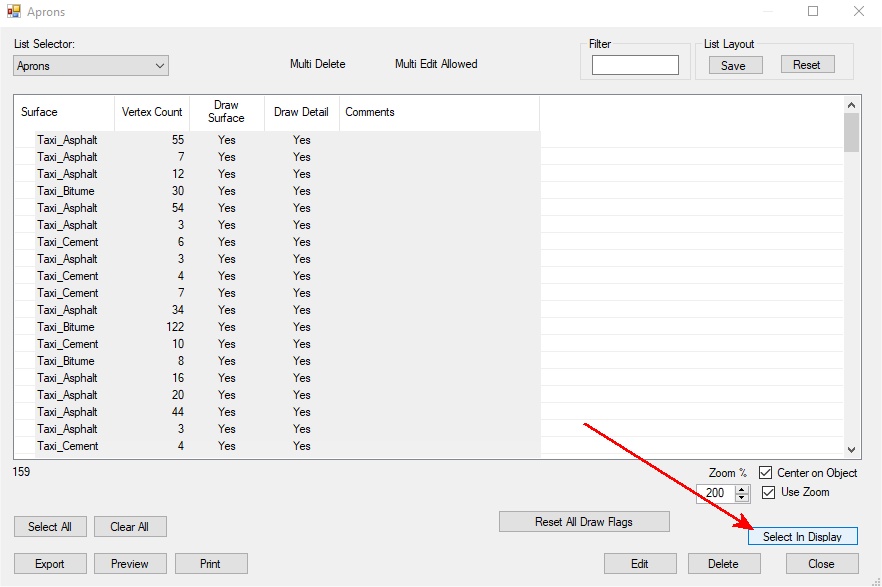
Use the list function to select the required items then click on "Select in display"

 
Forgot about that one George - too many ways to do something in ADE ;)
 
Back
Top