
• Which the release of FS2020 we see an explosition of activity on the forun and of course we are very happy to see this. But having all questions about FS2020 in one forum becomes a bit messy. So therefore we would like to ask you all to use the following guidelines when posting your questions:

    • Tag FS2020 specific questions with the MSFS2020 tag.
    • Questions about making 3D assets can be posted in the 3D asset design forum. Either post them in the subforum of the modelling tool you use or in the general forum if they are general.
    • Questions about aircraft design can be posted in the Aircraft design forum
    • Questions about airport design can be posted in the FS2020 airport design forum. Once airport development tools have been updated for FS2020 you can post tool speciifc questions in the subforums of those tools as well of course.
    • Questions about terrain design can be posted in the FS2020 terrain design forum.
    • Questions about SimConnect can be posted in the SimConnect forum.

    Any other question that is not specific to an aspect of development or tool can be posted in the General chat forum.

    By following these guidelines we make sure that the forums remain easy to read for everybody and also that the right people can find your post to answer it.

Need assistance creating water scenery

Messages
1,821
Country
australia
I am following the Flying Theston's video tutorial [011] Adding And Removing Water - Microsoft Flight Simulator 2020 SDK Tutorials to create a new area water area and can't work out how to set up the polygon water type
(maybe SDK updates have made things different.
In the tutorial he uses the Properties window to set the water type by selecting the ... next to Surface type however when I follow this there is no area in the properties window marked surface type.
Can anyone help me please.
Here is screen shots from the where I am attempting to set the properties surface type (left side
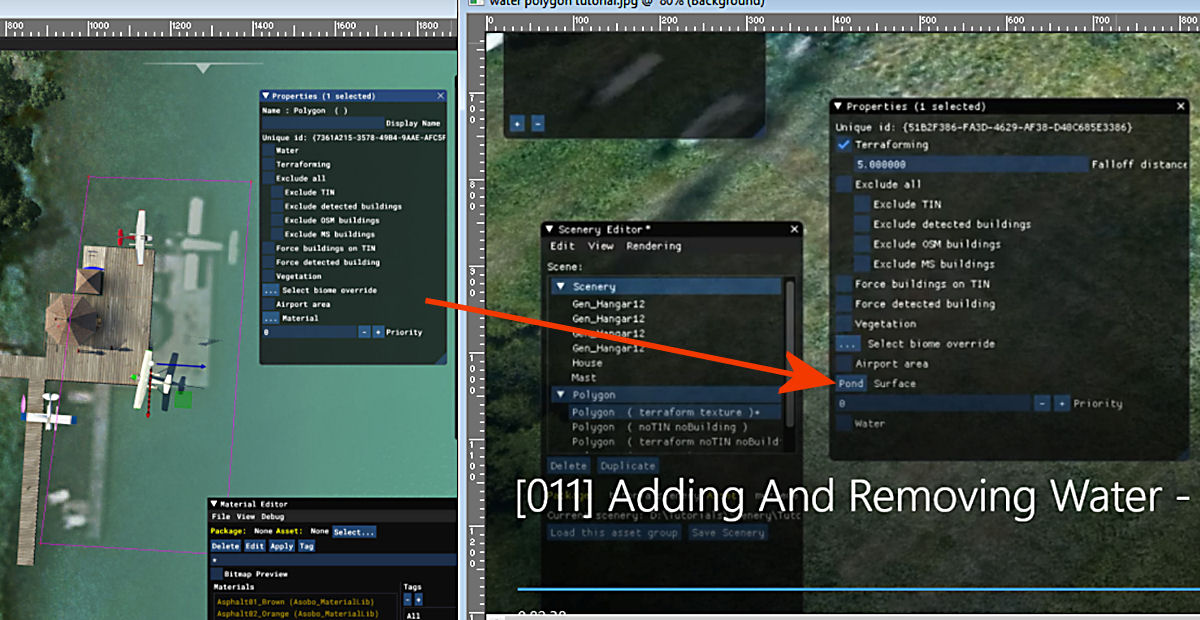
pond.jpg
of image) and the video tutorial (right side of image)
 
Hi John I confirm that that material doesn't exist, I put another material and to show it, I added priority as the tutorial.....But I don't see the water anyway. I must create an hole for a swimmingpool.
 
Thanks. I'm not convinced though that this will help to get rid of the satellite imagery of the docks and floatplane which I am trying to do (which you can see to the right of my docks).
 
Hi John, my friend solved the problem, the material doesn't exist, but in the last sdk you can find pond on water material, this is my friend's photo ( you can use any texture that you want), but if you built a little polygon as swimmingpool, you don't see it.
Good Luck!
 

Attachments

  • WhatsApp Image 2021-11-09 at 22.57.09.jpeg
    WhatsApp Image 2021-11-09 at 22.57.09.jpeg
    393 KB · Views: 292
Last edited:
remember...you must try falloff to zero ( not five as the tutorial), my friend made as this
 
If you use an apron (not a polygon) with water texture you can colourise the patch using the color picker to match the surrounding water. Make sure you use the fall-off option to blend it in, maybe 5-10m depending on the overall size. I use this all the time to clean up the edges of lakes and removal of ghost images

Kev
 
Thanks Andrea and Kev. The 'falloff' makes sense which I guess works to blend the two colors together BUT doesn't season, cloudiness, time of day etc cause the surrounding water to change color?
 
If you want to replace the imagery, then apron is the way to go. You an assign a material made of a texture of your own choosing.

To get a bing tile, you can place this an a browser:

h0.ortho.tiles.virtualearth.net/tiles/h0302222013313312130.jpeg?g=0

Change the number to get the specific tile(s) you want to use as a texture, for example:

h0.ortho.tiles.virtualearth.net/tiles/h0302222013331110020.jpeg?g=0

You can save the image from your browser, and then in a paint program you could stich images to cover the area you want. I'd keep the stitching to no more than 2x2 tiles. You might only get level 19 as MSFS seems to max out at that level for base tiles. Then you can alter the base image as much as you like in a paint program.

You'll need to create a material in DevMode out of the final texture. Then that material can be applied to an apron that covers the anomaly you want to hide. The apron Properties allows you to assign the material and LocalUV selected allows you to zoom and move the texture around on the apron. The last operation is to colorize the apron... that takes a bit of fooling around, but you can get close, and then falloff and transparency are your friends for the final adjustment.
 
Last edited:
I've attached an example of 2 polygons using reworked Bing images to create polygon patches (as opposed to apron patches). On the one hand, polys are great for patching because they are not tied to an airport. You can put them anywhere. On the other hand, they are limited to about a level 19 QMID I believe... the SDK says around 4cm per pixel.

Here's an example of removing a pier image. Before:
before.png


After:
after.png


I downloaded the level 19 image tiles from bing:

h0302222013313330320.jpeg
h0302222013313330322.jpeg


Using a paint program, I joined them vertically. I then used a rectangular select to choose just the general area I wanted to patch (make sure the area is divisible by 4 height and width). I altered the area to delete the pier (aprons require a vertical flip, polygons do not):
patch002.png


Make a Material in the DevMode and apply it to a polygon patch covering the anomaly. The tricky part is this. The initial polygon point is the anchor for the texture. All other points can be moved an the texture stays anchored. Move the initial point, and the texture's UV moves around. So place the initial point of the poly near the area to be removed.

The texture should remain the default 25.0000 meters in size. And should need no rotation. It will require coloring as MSFS applies shaders to the default tiles.

Edited changed the attached zip file, as the old one made no sense!
 

Attachments

Last edited:
Back
Top