
• Which the release of FS2020 we see an explosition of activity on the forun and of course we are very happy to see this. But having all questions about FS2020 in one forum becomes a bit messy. So therefore we would like to ask you all to use the following guidelines when posting your questions:

    • Tag FS2020 specific questions with the MSFS2020 tag.
    • Questions about making 3D assets can be posted in the 3D asset design forum. Either post them in the subforum of the modelling tool you use or in the general forum if they are general.
    • Questions about aircraft design can be posted in the Aircraft design forum
    • Questions about airport design can be posted in the FS2020 airport design forum. Once airport development tools have been updated for FS2020 you can post tool speciifc questions in the subforums of those tools as well of course.
    • Questions about terrain design can be posted in the FS2020 terrain design forum.
    • Questions about SimConnect can be posted in the SimConnect forum.

    Any other question that is not specific to an aspect of development or tool can be posted in the General chat forum.

    By following these guidelines we make sure that the forums remain easy to read for everybody and also that the right people can find your post to answer it.

Reset all Settings?

TurboCompound

Resource contributor
Messages
190
Hi all, I'm having a really puzzling problem with MCX, and I think I accidentally changed some sort of setting (not sure which). I have an FS9 MDL that I have loaded many times without an issue, but recently I loaded it again and it appears all scrambled. I have never directly edited this file nor have I ever re-exported it; I have only viewed it. Because of this, I think it must be some sort of setting I changed. The model displays normally in FS. Is there a way to reset all of my MCX settings to default?
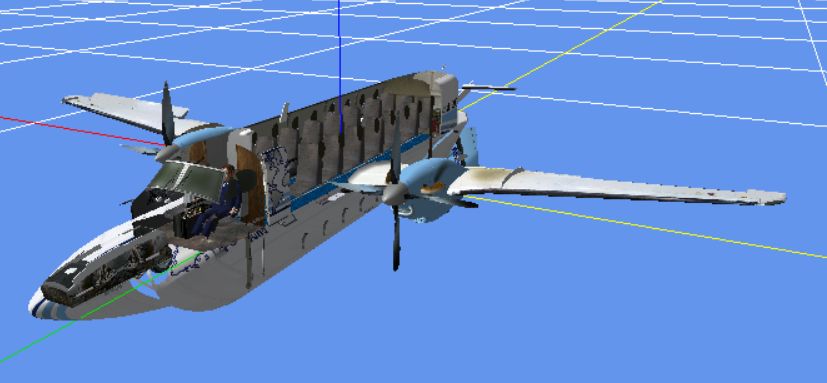
1548197591629.png


Just in case it was a problem with the file, I installed the airplane fresh and loaded the MDL again; same issue.
 
There may be a better/easier way than this, but in Windows Explorer, if you go to the directory in Users->"Your user name" ->AppData->Local->SceneryDesign.org and delete the ModelConverterX.exe_Url_... folder, then start up MCX, all of the options you had set previously will be gone. If you have multiple ModelConverterX.exe_Url_... folders, you can delete them all.

If you aren't comfortable with deleting this/these ModelConverterX.exe_Url_... folders, just move them to a new folder with some distinct name, so that MCX can't find them and then start up MCX.

Just in case... To be able to see the AppData folder, you need the File Explorer Options set to Show hidden files, folders, and drives.
 
The approach Dave described is indeed the way to reset the settings.
 
Back
Top