• Which the release of FS2020 we see an explosition of activity on the forun and of course we are very happy to see this. But having all questions about FS2020 in one forum becomes a bit messy. So therefore we would like to ask you all to use the following guidelines when posting your questions:

    • Tag FS2020 specific questions with the MSFS2020 tag.
    • Questions about making 3D assets can be posted in the 3D asset design forum. Either post them in the subforum of the modelling tool you use or in the general forum if they are general.
    • Questions about aircraft design can be posted in the Aircraft design forum
    • Questions about airport design can be posted in the FS2020 airport design forum. Once airport development tools have been updated for FS2020 you can post tool speciifc questions in the subforums of those tools as well of course.
    • Questions about terrain design can be posted in the FS2020 terrain design forum.
    • Questions about SimConnect can be posted in the SimConnect forum.

    Any other question that is not specific to an aspect of development or tool can be posted in the General chat forum.

    By following these guidelines we make sure that the forums remain easy to read for everybody and also that the right people can find your post to answer it.

Textures cannot be exported

This will be a question best answered by the Blender experts; one might get their attention by posting here:

https://www.fsdeveloper.com/forum/forums/blender.136/


Sometimes one may get answers here by Arno if issues occur when exporting via ModelConverterX (aka "MCX"):

https://www.fsdeveloper.com/forum/forums/modelconverterx.87/


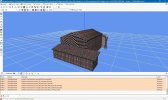
If I load your model into MCX from this BGL:

[path]\LFEH-avitionblues\Packages\anto609-airport-lfeh-aubigny-sur-n-re\Scenery\airport-lfeh-aubigny-sur-n-re\LFHE3D\LFHE3D.BGL

...MCX shows this:

anto_609_packages_lfhe3d-jpg.99714


NOTE: Packages output folder chain does not include a \Texture sub-folder, and obviously will not work in MSFS. :redflag:

If I manually add the \Texture sub-folder path in PackageSources for your model into MCX, I still get the result above.


But... if I load your model into MCX from this glTF:

[path]\LFEH-avitionblues\PackageSources\Scenery\airport-lfeh-aubigny-sur-n-re\LFHE3D\lfexbat.gltf

...MCX shows this:

anto_609_packagesources_lfexbat_gltf-jpg.99715


NOTE: The PackageSources output folder chain does include a \Texture sub-folder. ;)


IIUC, there is something wrong with your export process in Blender; possibly your Blender configuration / setup ?


You could load the latter glTF cited above into MCX and export for MSFS via MCX as a comparative test. :idea:

GaryGB
 

Attachments

  • Anto_609_Packages_LFHE3D.jpg
    Anto_609_Packages_LFHE3D.jpg
    236 KB · Views: 97
  • Anto_609_PackageSources_lfexbat_gltf.jpg
    Anto_609_PackageSources_lfexbat_gltf.jpg
    239.2 KB · Views: 95
Last edited:
MCX does not load *.blend files as currently utilized by Blender, so it throws an error.

Try instead, within Blender, to Export a MSFS glTF, then import that into MCX.

GaryGB
 
Last edited:
MCX ne charge pas les fichiers Blender *.blend actuellement utilisés. Il génère donc une erreur.

Au lieu de cela, dans Blender, exportez un glTF MSFS, puis importez-le dans MCX.

GaryGB
bonjour le modelib n'apparaît même plus alors j'en ai créé un nouveau et toujours pas
lorsque j'essaie d'exporter, j'obtiens cette erreur
et j'exporte dans .ac jsp si c'est bon ou pas
merci beaucoup
 

Attachments

  • Capture d'écran 2026-04-24 200822.png
    Capture d'écran 2026-04-24 200822.png
    90.3 KB · Views: 29
  • Capture d'écran 2026-04-24 200602.png
    Capture d'écran 2026-04-24 200602.png
    15 KB · Views: 27
It can
bonjour le modelib n'apparaît même plus alors j'en ai créé un nouveau et toujours pas
lorsque j'essaie d'exporter, j'obtiens cette erreur
et j'exporte dans .ac jsp si c'est bon ou pas
merci beaucoup

Google Translation:

"Hello—the Modelib isn't even showing up anymore. I tried creating a new one, but it still won't appear.
When I try to export, I get this error.
I'm exporting to the .ac format—I'm not sure if that's the correct one or not.
Thanks a lot!"

Please use the Google Translation web page to post only English in the FSDEV forum:

https://www.google.com/search?q=Goo...B8YIwgcGMi0xNy4xyAdTgAgA&sclient=gws-wiz-serp


It can indeed be rather confusing when first learning how to work with FS SDK and numerous FS development related utilities. :)


The MCX PDF Manual can be translated to French in sections using the Google Translate web page cited above via Copy / Paste.


When we import / export, to / from ...MCX, we must set the file type to filter the tasks we want MCX to perform.


If we want to import the glTF into MCX from:

[path]\anto#609_probleme\LFEH-avitionblues\PackageSources\Scenery\airport-lfeh-aubigny-sur-n-re\LFHE3D\lfexbat.gltf

...set the MCX file type (in the control pick list just above the [OK] button) ...to glTF (*.glTF).


MCX 'should' use its internal search path for common locations of mapped textures, and then map them onto the glTF.

Let us know after you successfully import the glTF and get a proper 3D preview displayed, what it is you want to do next. ;)

GaryGB
 
Last edited:
It can


Please use the Google Translation web page to post only English in the FSDEV forum:

https://www.google.com/search?q=Goo...B8YIwgcGMi0xNy4xyAdTgAgA&sclient=gws-wiz-serp


It can indeed be rather confusing when first learning how to work with FS SDK and numerous FS development related utilities. :)


The MCX PDF Manual can be translated to French in sections using the Google Translate web page cited above via Copy / Paste.


When we import / export, to / from ...MCX, we must set the file type to filter the tasks we want MCX to perform.


If we want to import the glTF into MCX from:

[path]\anto#609_probleme\LFEH-avitionblues\PackageSources\Scenery\airport-lfeh-aubigny-sur-n-re\LFHE3D\lfexbat.gltf

...set the MCX file type (in the control pick list just above the [OK] button) ...to glTF (*.glTF).


MCX 'should be able to use its internal search path for common locations of mapped textures, and then map them onto the glTF.

Let us know after you successfully import the glTF and get a proper 3D preview displayed, what it is you want to do next. ;)

GaryGB
Hello, it's okay now, I managed to get my building, unfortunately still without textures. I put the textures in the same folder as my building, and I tried adding a texture folder, but even that didn't work.

So I'm wondering if it could be a problem with my game, because this is the fourth exporter I've tried.

Thank you very much.

Antonin
 
Hello, it's okay now, I managed to get my building, unfortunately still without textures. I put the textures in the same folder as my building, and I tried adding a texture folder, but even that didn't work.

So I'm wondering if it could be a problem with my game, because this is the fourth exporter I've tried.

Thank you very much.

Antonin

AFAIK, there is only (1) Blender MSFS Exporter which you should use at this time.

For info on Asobo's own MSFS Exporter found in MSFS 2020 SDK:

https://docs.flightsimulator.com/ht...lugin/The_Blender_Plugin.htm?rhhlterm=blender

https://docs.flightsimulator.com/ht..._Plugin.htm?rhhlterm=blender&rhsearch=Blender

https://www.fsdeveloper.com/forum/t...g-on-blender-fs2024-export.460568/post-937925


Be certain you have that Blender MSFS Exporter cited in MSFS 2020 SDK installed before proceeding with any work in Blender.

GaryGB
 
AFAIK, there is only (1) Blender MSFS Exporter which you should use at this time.

For info on Asobo's own MSFS Exporter found in MSFS 2020 SDK:

https://docs.flightsimulator.com/ht...lugin/The_Blender_Plugin.htm?rhhlterm=blender

https://docs.flightsimulator.com/ht..._Plugin.htm?rhhlterm=blender&rhsearch=Blender

https://www.fsdeveloper.com/forum/t...g-on-blender-fs2024-export.460568/post-937925


Be certain you have that Blender MSFS Exporter cited in MSFS 2020 SDK installed before proceeding with any work in Blender.

GaryGB
So what is mcx used for?

I'll go check the documentation.

Thank you very much.

Antonin
 
I used MCX to preview your work in a 3D view outside of Blender, and to verify if texture mapping was intact within the 3D model.


I must also mention MCX can be used to:

* Create a MSFS Project folder chain with a basic project XML file

...and:

* Export properly mapped textures to a \Texture sub-folder in the Project folder chain

...and:

* Export the 3D model as a glTF to a \Scenery sub-folder in the Project folder chain


If you wish to do an export of your MSFS 2020 project via MCX, I may be able to assist you, so you can compare that process to Blender.

Let me know if you would like to do that; if so, I may have some time over the weekend to demonstrate that process.


Otherwise, test your MSFS 2020 SDK-supplied Blender Exporter after it is properly installed within Blender.

GaryGB
 
Last edited:
Oh dear, I sent you the wrong file.
Okay, that's better, but actually, when I export with a single color like just red, it exports. However, as soon as I export a texture from an image, it doesn't work anymore.
Thanks
Hi Anto, your image should be 1024x1024, 2048x2048,4096x4096 … png format ok, and sRGB …
 
Hi again, Anto:

If we do a demo of export to MSFS via MCX, we will see how easy it is to ensure the correct \Texture path and file format is used.

That will include not just using PNGs intended to be converted to MSFS SDK compatible texture Material, but specific Pixel too.


With MSFS texture Materials, MCX must output pixel arrays in a size that is not just 'powers of two', but a 'multiple of four'.

Additionally, MSFS SDK requires that textures have a minimum pixel array of 8x8; MCX ensures that during texture processing. ;)

https://docs.flightsimulator.com/html/Asset_Creation/Textures/Textures.htm?rhhlterm=8 pixels

https://www.fsdeveloper.com/forum/t...esize-all-to-multiple-of-4.455625/post-927257


GaryGB
 
Last edited:
Back
Top