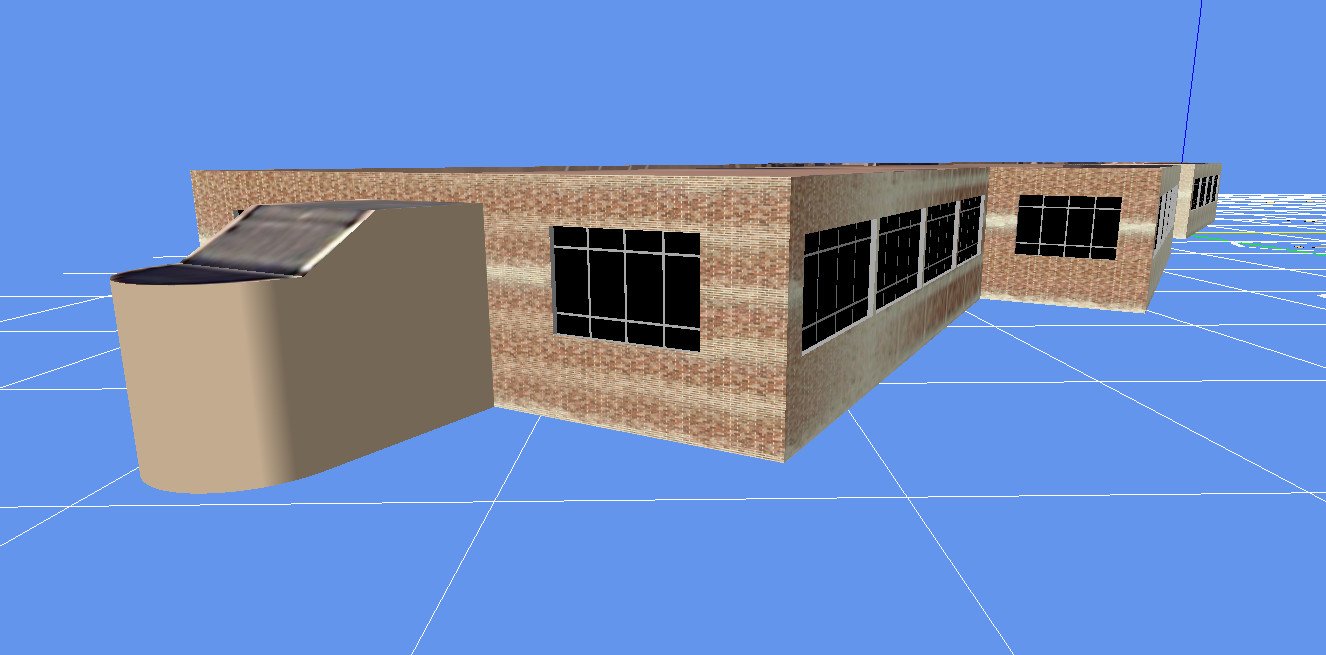
Hi Ken:
I mis-identified what I assumed was threads Google found containing prior tutorials by me on use of MCX Material Editor to convert textures to a specified output format.
Incidental to chasing my own links, I see that Google AI stated it only included results from 2024 to the current date in 2026 in its report.
I knew I had previously discussed with you, the MCX Material Editor texture conversion workflow, and have found a thread post you may wish to start reviewing.
I do not have much time free today, as I am helping someone with tax-filing commitments using a Windows 11 boot USB for software that no longer works on Win 10.

So I do not have access to my Windows 10 configuration and installation of various FS / P3D versions to refer to.

Try starting with a review of this old thread from 2015 (you will of course need to substitute your current 3D model and P3D version under discussion above in the OP).:
https://www.fsdeveloper.com/forum/threads/decompiling-a-bgl-file.434183/post-719619
FYI: IIUC, that thread was closed to enforce keeping threads to a practical minimal limited size, so I can only 'quote' the post in question via Windows clipboard functions:
"
When MCX is properly installed and configured on your development computer:
1.)
MCX Menu > Import > [Open dialog
]
a.) Set import type to {"
Google Earth File (*.KMZ)"}
b.) Browse / Select / Open
ex: [
your KBHM_terminal_BC_Model_file_name.KMZ] ...just exported from Sketchup above
< MCX should now import the model and eventually display a 3D preview with textures >
2.)
MCX Icon Bar 'Top Row' > click
7th Icon from
Left end > [Material Editor dialog
]
a.) In
[Material Editor dialog
] > [Properties Tab
] > Material Editor Menu > click ["
All" button
]
NOTE: [
Material Editor dialog] > [Properties] [Textures] [Draw Calls] [ Optimize] tabs ...are all at the
bottom;
b.) In
[Material Editor dialog
] > [Textures Ta
b] > Material Editor Menu > set Texture Folder output path ex:
[FSX install path]\Addon Scenery\[
your KBHM_terminal_BC_Model_file_name]\
Texture
c.) In
[Material Editor dialog
] > [Textures tab
] > Material Editor Menu > set
Texture type to {"
DDS"}
d.) In
[Material Editor dialog
] > [Textures tab
] > Material Editor Menu > click ["
Resize all to Power of 2" button]
e.) In
[Material Editor dialog
] > [Textures tab
] > Material Editor Menu > click ["
Save Textures"] button.
3.) Close
[Material Editor dialog
]
4.)
MCX Menu > Export Scenery > [Save as dialog
]
a.) set
Scenery Folder output path
ex:
[FSX install path]\Addon Scenery\[
your KBHM_terminal_BC_Model_file_name]\
Scenery
b.) set
Save As 'Type' to: {
FSX BGL file (*.BGL)}
c.) set
Save As 'File name' to
ex: [
your KBHM_terminal_BC_Model_file_name].
BGL
<
You have now exported your KBHM terminal model to be displayed in FSX >
 NOTE
NOTE: If you wish to
inspect (within MCX) the resulting exported / converted KBHM terminal model inside
ex:
[FSX install path]\Addon Scenery\[
your KBHM_terminal_BC_Model_file_name]\
Scenery\[
your KBHM_terminal_BC_Model_file_name].
BGL
1.)
MCX Menu > Import > [Open dialog
]
a.) Set import type to {"
FS BGL object (*.BGL)"}
b.) Browse / Select / Open
ex: [
your KBHM_terminal_BC_Model_file_name.BGL] ...just exported from Sketchup
< MCX should now import the 'converted' model and display a 3D preview with textures (with no errors !) >
Let me know how the above process works for you.

"
Also, please review this info:
https://www.google.com/search?q=site:+www.fsdeveloper.com+MCX+Material+Editor+add+MIPMAP&sca_esv=76d22973dcec555c&source=hp&ei=JU_eadS8FZuqruEP8ZqCyAw&iflsig=AFdpzrgAAAAAad5dNaMQmCPDjgM4T7IpZ5u2fuxp-mV1&ved=0ahUKEwiU467Zxu2TAxUblSsGHXGNAMkQ4dUDCCw&uact=5&oq=site:+www.fsdeveloper.com+MCX+Material+Editor+add+MIPMAP&gs_lp=Egdnd3Mtd2l6IjhzaXRlOiB3d3cuZnNkZXZlbG9wZXIuY29tIE1DWCBNYXRlcmlhbCBFZGl0b3IgYWRkIE1JUE1BUEiI0wFQAFj-zAFwAHgAkAEBmAGjAaAB1CCqAQUxNS4yNbgBA8gBAPgBAfgBApgCFKAChhTCAgsQABiABBiKBRiRAsICChAAGIAEGIoFGEPCAg4QABiABBiKBRixAxiDAcICERAuGIAEGLEDGIMBGMcBGNEDwgIOEC4YgAQYsQMYxwEY0QPCAgUQLhiABMICCxAuGMcBGNEDGIAEwgILEAAYgAQYsQMYgwHCAggQLhixAxiABMICCBAAGIAEGLEDwgILEC4YgAQYsQMYgwHCAgUQABiABMICCxAuGIAEGMcBGNEDwgIGEAAYAxgKwgILEC4YrwEYxwEYgATCAgQQABgDwgIFECEYoAHCAggQABiABBiiBMICBRAAGO8FwgIFECEYqwKYAwCSBwQzLjE3oAesc7IHBDMuMTe4B4YUwgcHMi05LjguM8gH4QGACAE&sclient=gws-wiz
To be certain MCX successfully added MIPMAPs to your output textures, re-import and inspect the exported 3D model in MCX' 3D preview to see if the Moire anomaly has abated.
You can also view the MCX brick texture output DDS, using FSX or P3D SDK
ImageTool and display the MIPMAPs via the proper menu option in that SDK utility.
C:\Program Files (x86)\Lockheed Martin\Prepar3D SDK 1.4.4747.0\Environment Kit\Terrain SDK\
ImageTool.exe
NOTE: I do not recommend use of Martin Wright's
DXTBmp.exe except by very experienced users (who also have very good memories

)
I'll check back on this thread after I get some more time free from other commitments.
GaryGB